

See who is near their usage limit
In Settings, select Workspace > Usage. It shows each person’s share of their weekly allowance as a percentage. The dollar limit is internal.- This week shows the Team allowance percentage and the day it resets, with a bar and a weekly history. Under it, Runs counts Sidekick runs across the team. Sidekicks across the team counts Sidekicks, split into deals and helpers. Members active shows how many members ran a Sidekick this week.
- Members lists each person with a bar and a percentage. The line on each bar is 90%. Past it, a member is near their limit. A member at 100% shows Used up.
Open one person’s usage and activity
Select a person in the Members list. You can also open their page from Team and select See their usage. The person’s page shows This week, Weekly usage, last 8 weeks, Approvals (Approved this week, Refused, Waiting on them), Their Sidekicks, and Connections. An Audit log lists what happened: a Sidekick was made, a card was approved or refused, a write ran, a connector was connected, or a limit was reached. It records what and when. It never shows what was said, because a conversation with a Sidekick stays private to its owner.Pause or delete a watch
A watch checks something on a schedule, such as a deal or a company, and writes a report when it finds a change. All watches in a workspace share one pool of fixed size. The Watches page shows who uses it. Only workspace admins can open it, and Settings has no link to it yet: it lives at/team/watches in the app.
- Open Watches. The ring shows watches in the pool against the limit, and how many are paused. Watches by member shows each person’s share.
- Find the watch with Search watches. Each card shows its status (Active, Starting, Paused or Disabled), how often it checks (daily or weekly), when it last checked, the Sidekick that runs it, and its owner.
- Open the card’s menu and choose Pause, Resume or Delete. Delete asks you to confirm.
Invite a teammate
- In Settings, select Workspace > Team, then select Invite people. Only a workspace admin sees this button. The Invite members dialog opens.
- In Email addresses, enter one or more addresses separated by commas, spaces or new lines.
- Next to Role, choose Admin, Manager or Member. Everyone in one invite gets the same role. The default is Member.
- Select Send invites. Doris skips an address that is already a member or belongs to another workspace, and tells you why.
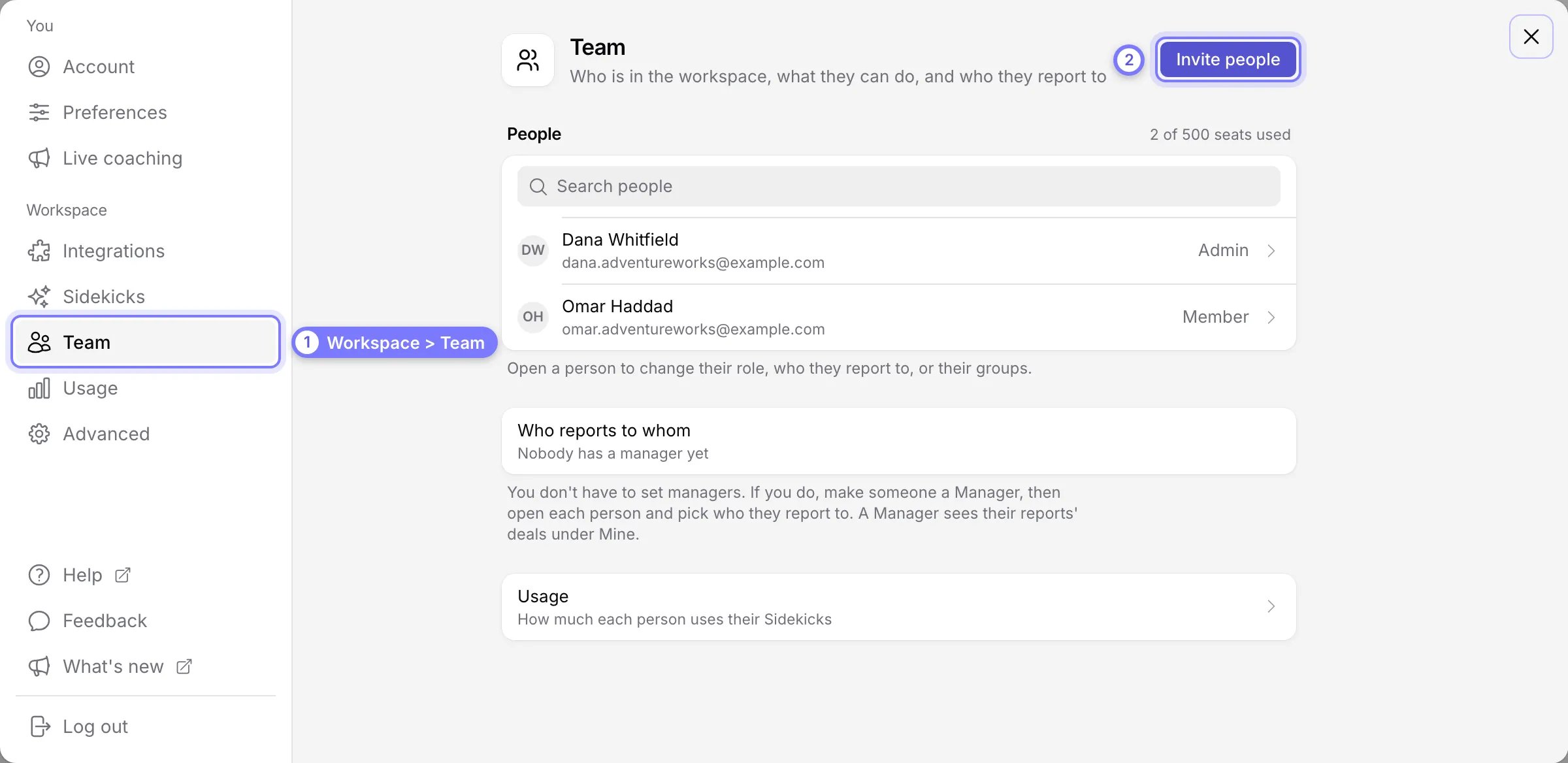
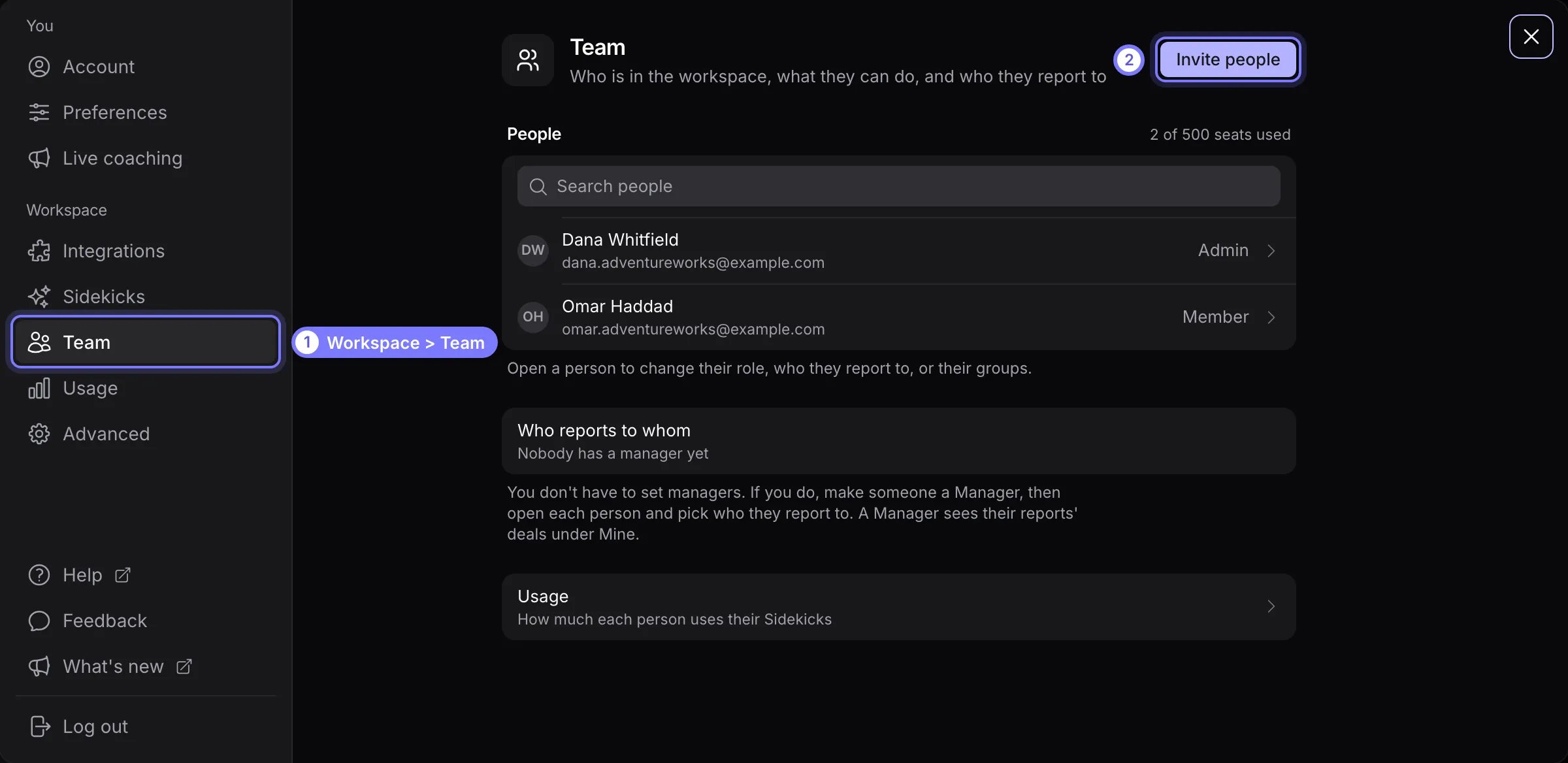
Settings > Workspace > Team. (1) Open Team under Workspace. (2) Select Invite people. The People list shows everyone in the workspace with their role.
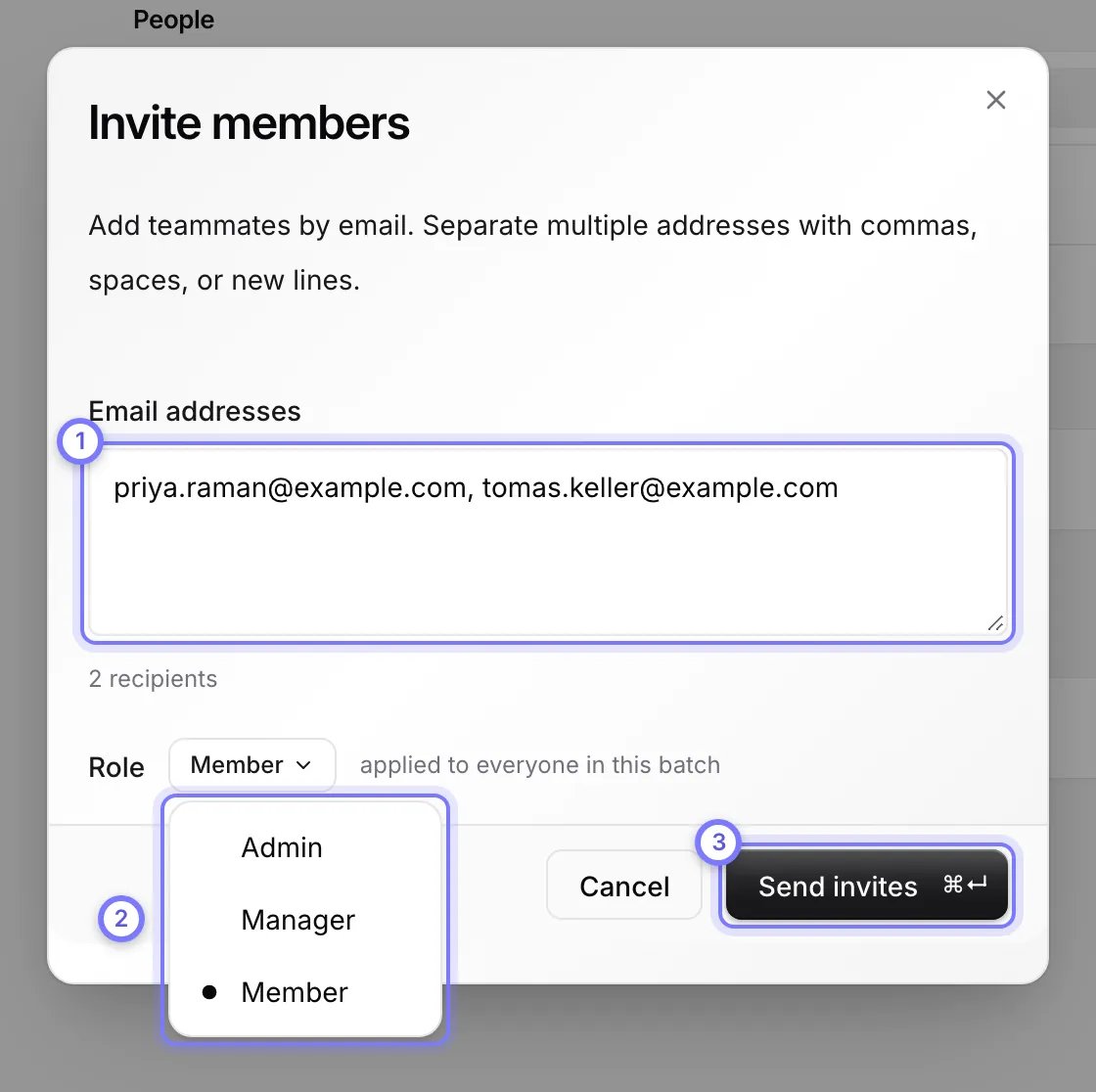
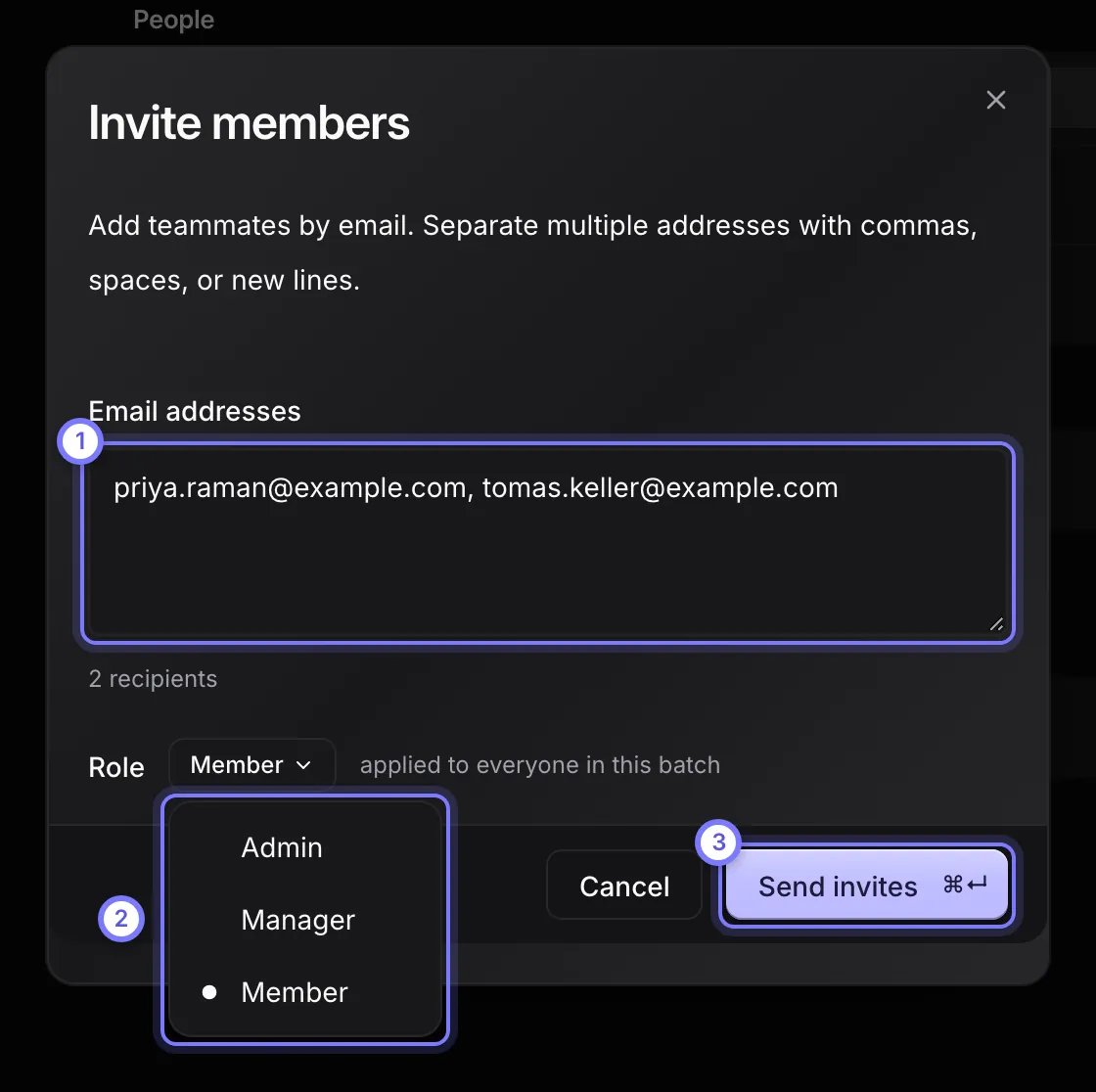
The Invite members dialog. (1) In Email addresses, enter one or more addresses, separated by commas, spaces or new lines. (2) Next to Role, choose Admin, Manager or Member. Everyone in one invite gets the same role. (3) Select Send invites.
Choose a person’s role
The person who created the workspace also has an Owner badge.
- In Settings, select Workspace > Team. Search the People list with Search people, then select the person.
- Select the Role row.
- Choose Admin, Manager or Member. The change applies at once and you return to the person’s page.
Set who a person reports to
Reporting managers decide whose team summaries a Manager gets. Open the person’s page and select the Reports to row. Pick a person or Nobody. Only a Manager or an Admin can have people report to them. To pick someone else, make them a Manager first.Suspend, restore, remove or transfer a person
Open the person’s page from Team. Doris asks you to confirm before it suspends or removes someone.
A removed person who signs in sees “You are no longer a member”. The page tells them to ask a workspace admin to invite them again.
To bring a removed person back, select Invite people and enter their email address. After they sign in with the same login, they rejoin the workspace with the role you chose in the invite. A removed person uses a seat again once they rejoin, so check that a seat is free first.
Check a person’s integration coverage
A person with no calendar gets no notetaker, so check coverage after you invite people. The Team page does not show it. Each connection shows who it covers on its own page.- In Settings, select Workspace > Integrations, then select the Calendar row.
- Under People, read the line next to each name.
- For each person who reads Not covered, select Add to have Doris read their calendar through the workspace connection, or ask them to connect their own calendar in Connectors on their first day.
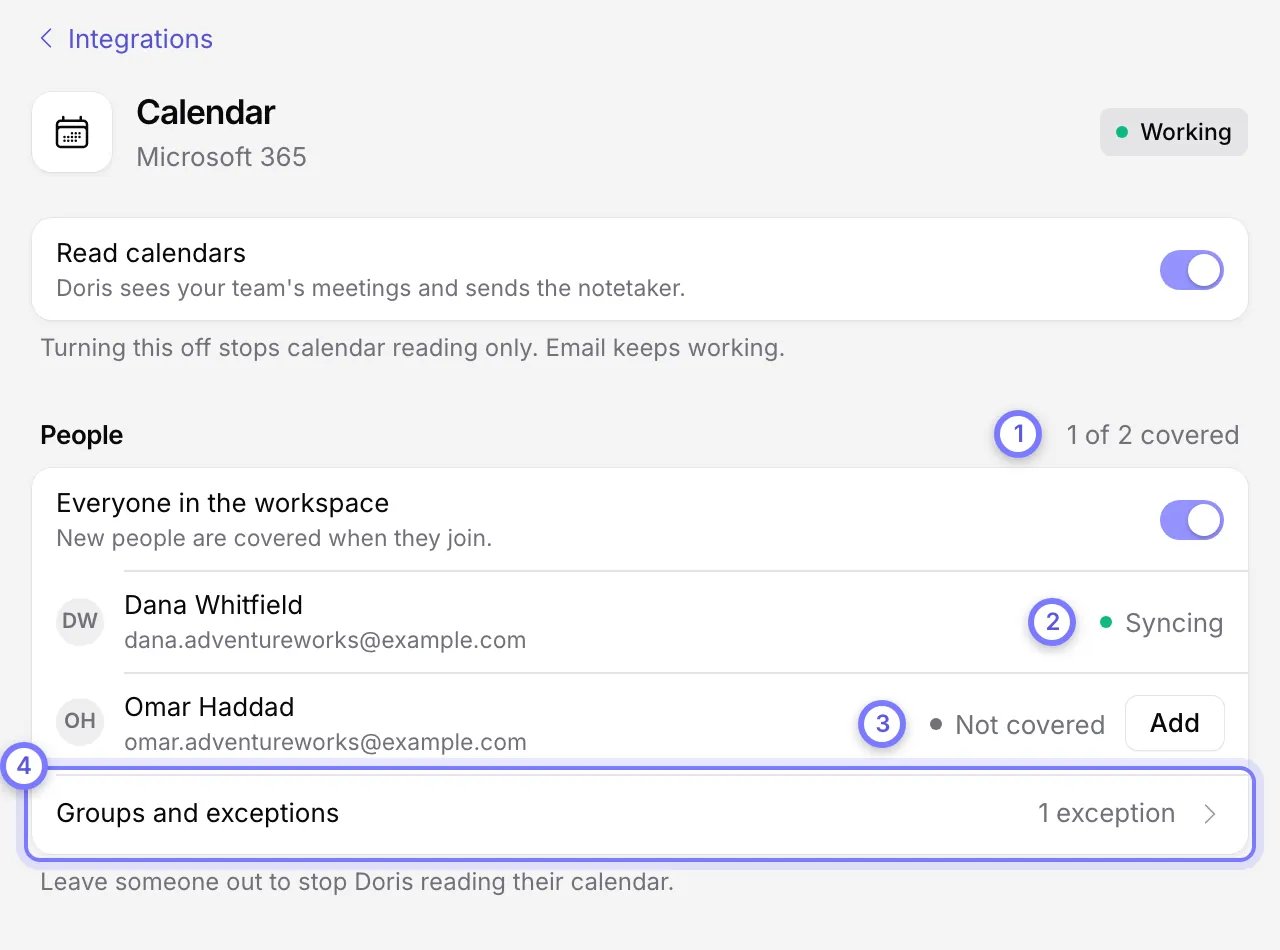
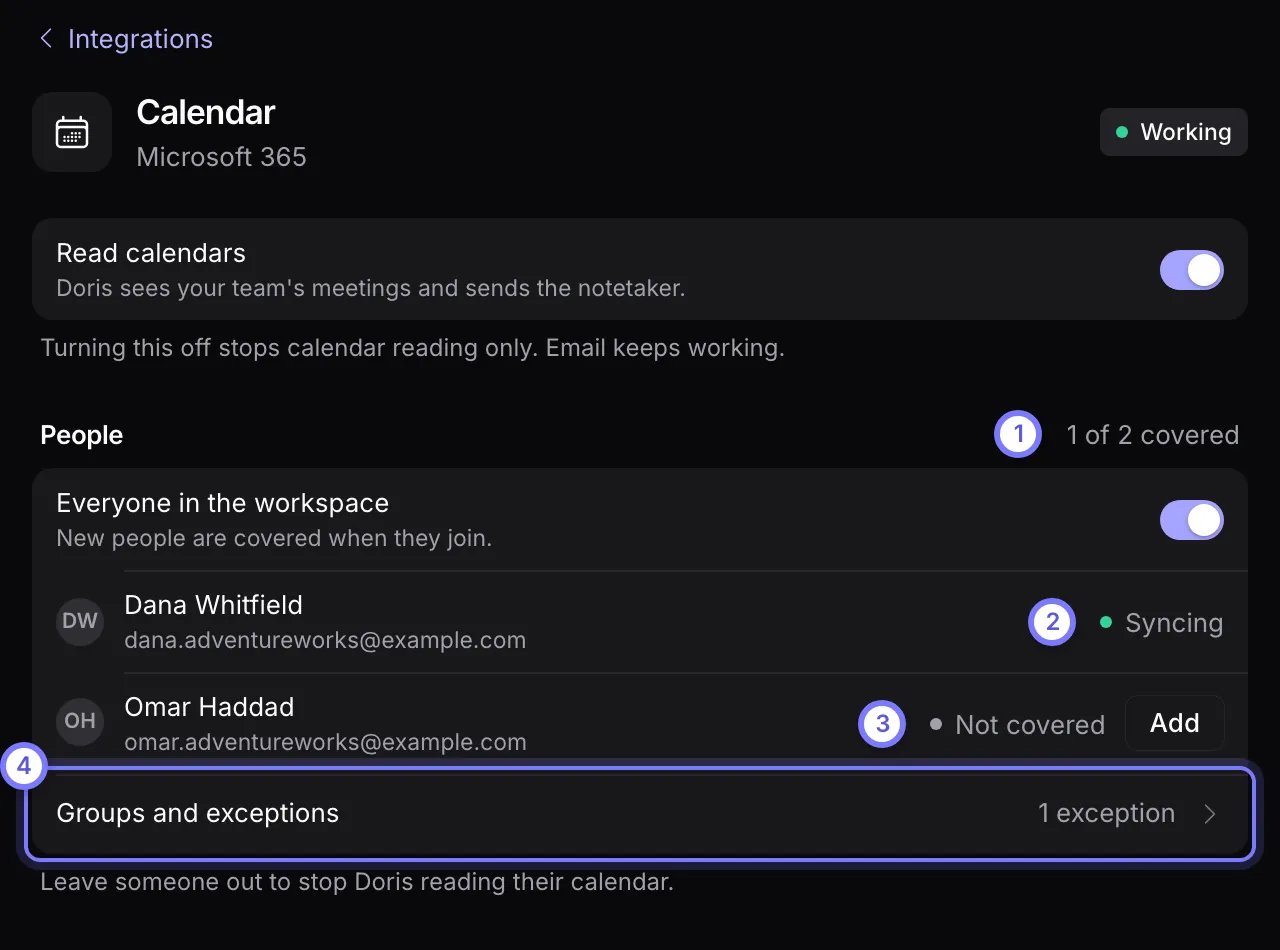
The People list on the Calendar page shows who is covered. (1) The count shows how many people Doris reads now. (2) Syncing means Doris reads that person's calendar. (3) Not covered means Doris reads nothing yet. That person connects their own calendar on their first day, or you select Add to cover them. (4) Groups and exceptions opens the full list.