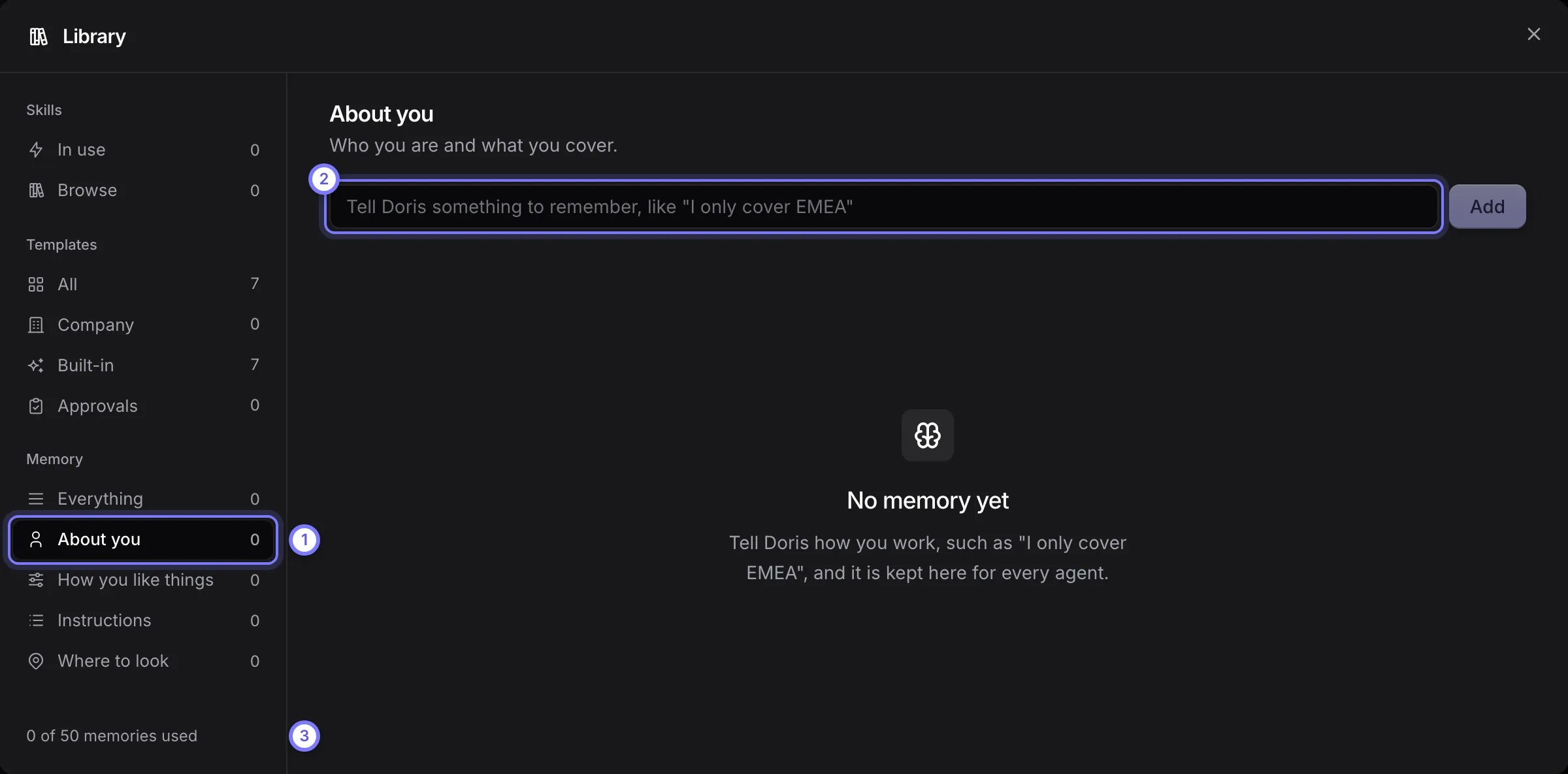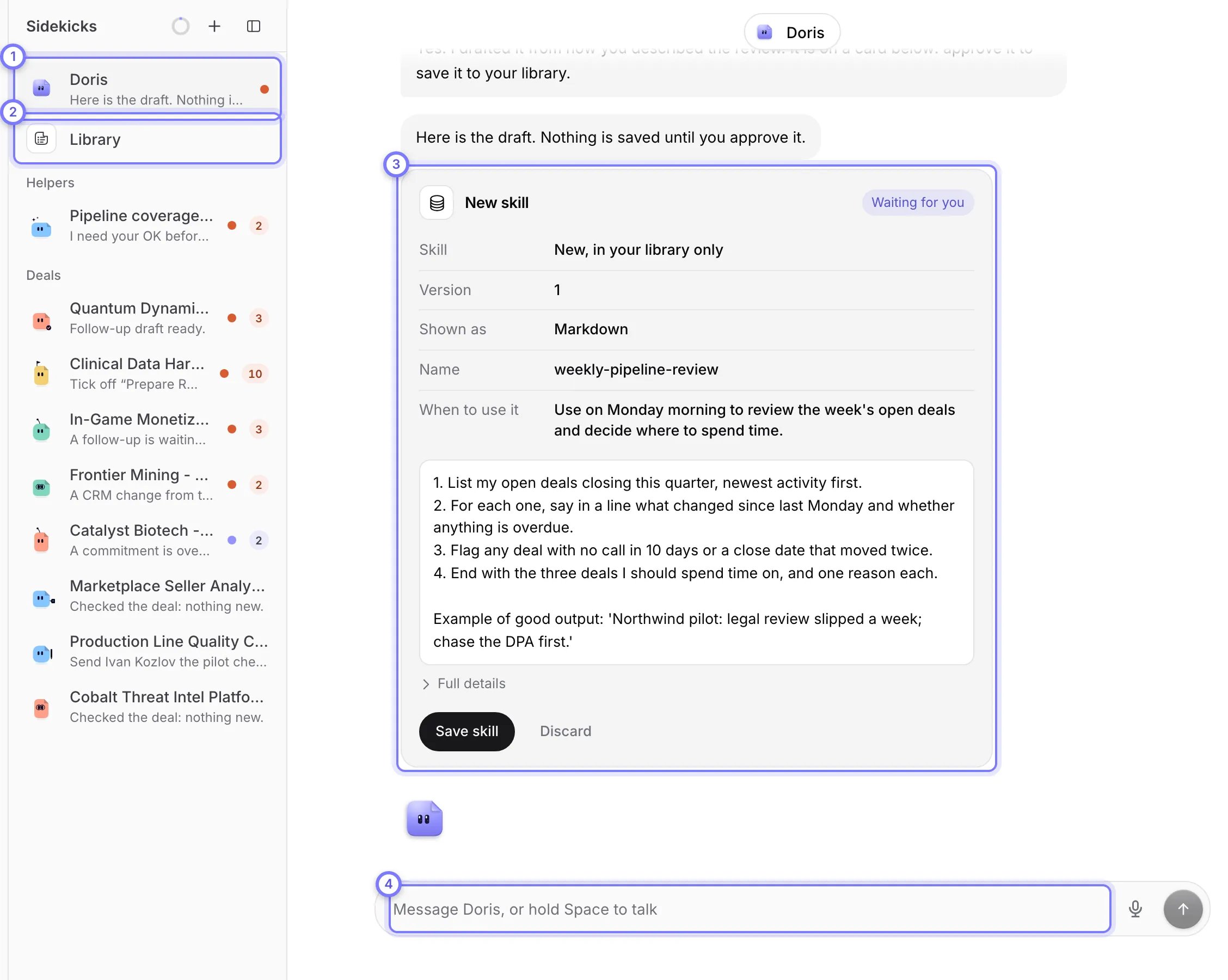
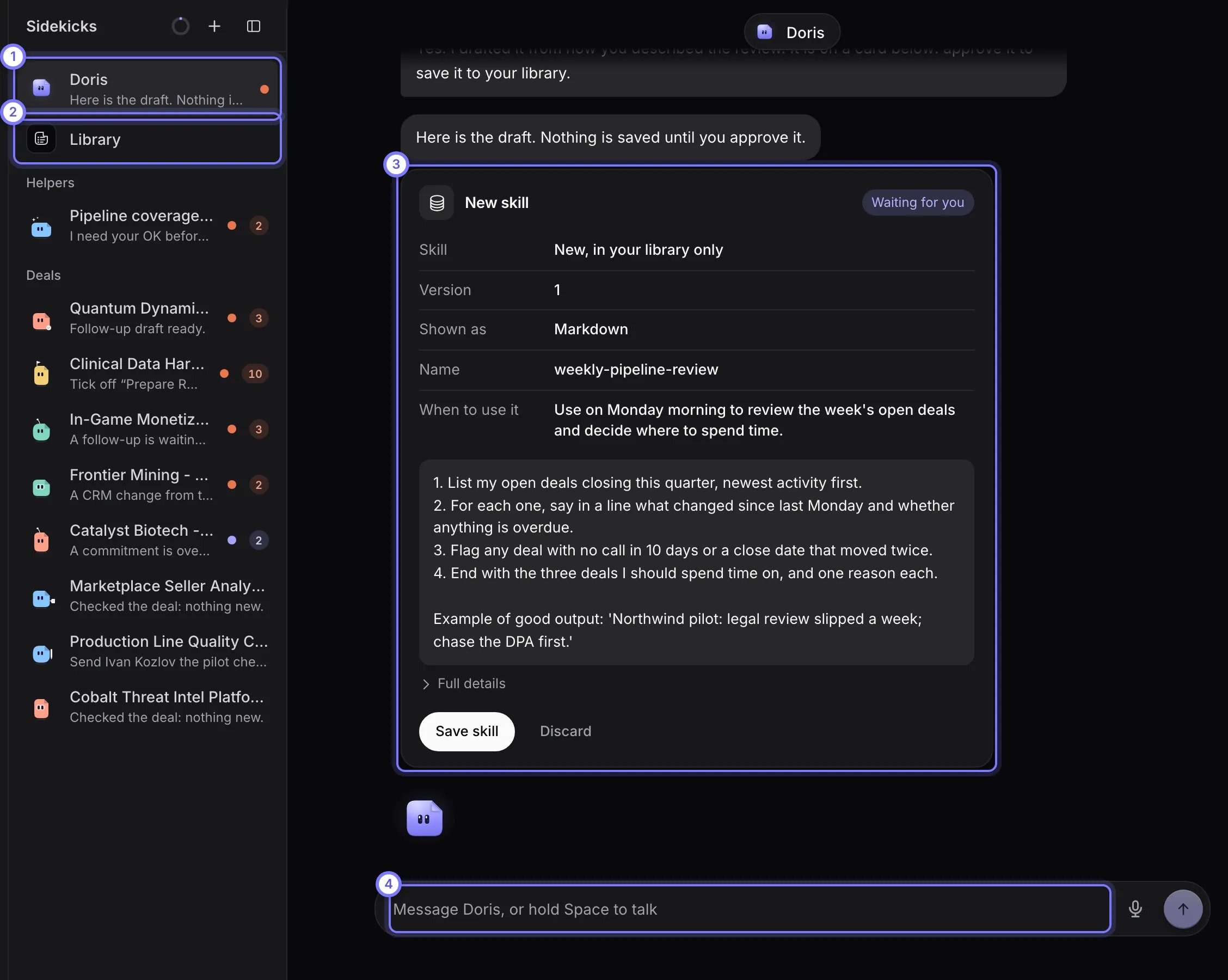
Doris is one running conversation at the top of the Sidekicks list, so there are no new chats to start. She can look across all your deals and Sidekicks.
Doris's conversation. Doris is first in the Sidekicks list, with Library below it. In the conversation a New skill card shows a draft with Save skill and Discard buttons. The Message Doris box is at the bottom.Doris's conversation. Doris is first in the Sidekicks list, with Library below it. In the conversation a New skill card shows a draft with Save skill and Discard buttons. The Message Doris box is at the bottom.

Doris, the first row of the Sidekicks list. (1) Doris is one running conversation. (2) Library holds her skills, templates and memory. (3) A card waits for you: edit it, then select its button (here Save skill) or Discard. (4) Type your question in the Message Doris, or hold Space to talk box.

Ask Doris a question

Open Sidekicks, type in the box at the bottom and press Enter. Name the deal, company, person or meeting to get a specific answer.
  • “What changed on my deals this week?”
  • “Prep me for the Acme call tomorrow.”
  • “Which commitments are overdue?”
  • “Make a canvas of my pipeline by stage.”
  • “Remind me on Thursday to chase the security questionnaire.”
  • “How do I connect my calendar?”
Doris answers from the records you can see: deals, companies, people, meetings, transcripts and commitments. She can also search the public web, and she answers how-to questions from these docs with a citation. She does not search Knowledge. Your Sidekicks do.

Approve what Doris does

Doris asks before anything leaves Doris or changes a record. She posts a card in the conversation. Edit the text on the card, then approve it with the button on the card or select Discard. Nothing happens until you do. Through the conversation Doris can make and edit canvases, set up a Sidekick or add a routine to one, set a reminder, and save things to your memory.

Change what Doris remembers

  1. Select Library under Doris in the Sidekicks list. Its Memory section holds what she remembers.
  2. Open a section: About you, How you like things, Instructions or Where to look.
  3. Type a fact into the box at the top, such as “I only cover EMEA”. Or tell Doris in the conversation.
  4. To change an entry, use its Edit, Keep to one Sidekick or Forget buttons.
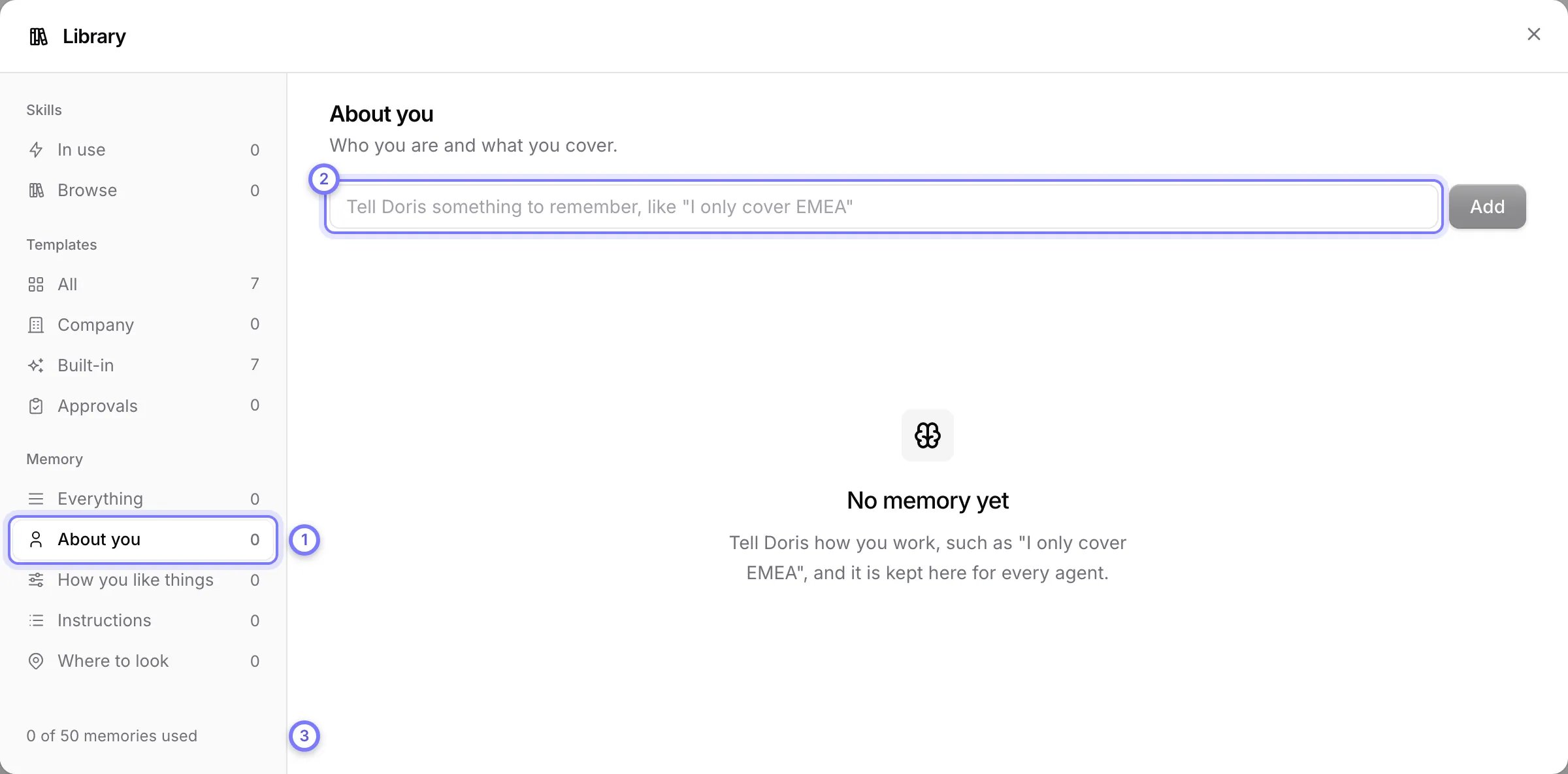
The Library window opened on Memory, About you. The left column lists Skills, Templates and the memory sections, About you, How you like things, Instructions and Where to look, and ends with the count of memories used. A box at the top adds a fact.The Library window opened on Memory, About you. The left column lists Skills, Templates and the memory sections, About you, How you like things, Instructions and Where to look, and ends with the count of memories used. A box at the top adds a fact.

Library, opened on Memory > About you. (1) Pick a section. (2) Type a fact in the box at the top and select Add. (3) The count shows how many of the 50 entries you have used.

Every Sidekick uses this memory. Doris keeps up to 50 entries. At the limit she asks you to forget one before she saves another. Skills sit in the same window under In use and Browse, and templates under Templates. See Set it up for your team.

See and pause Doris’s routines

Select the Doris pill at the top of the conversation to open her details panel. Settings lists her routines. Switch a routine off to pause it. To add or change one, ask her. Memory holds what you pinned for Doris and what she learned. Notes holds context she keeps to look back at.
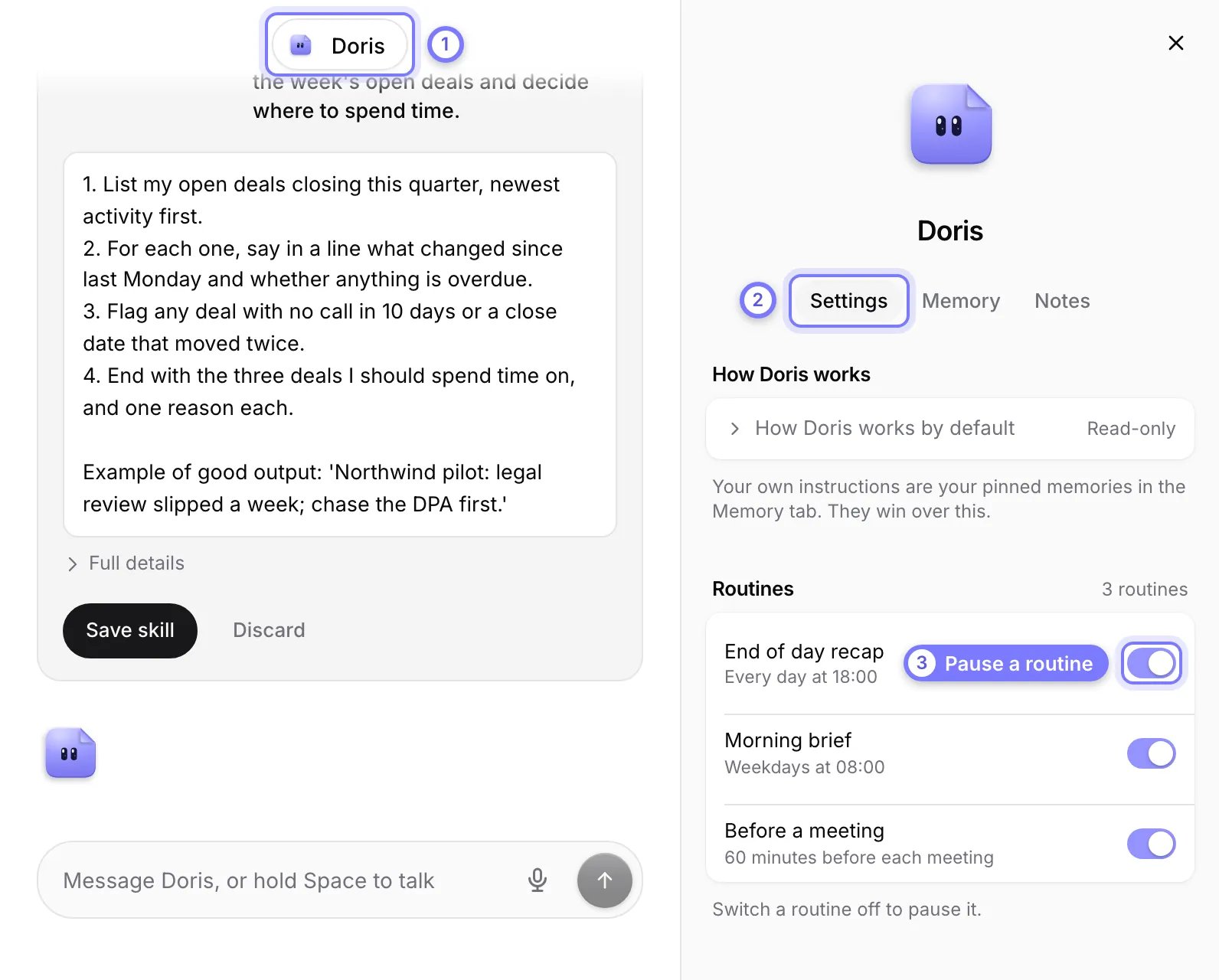
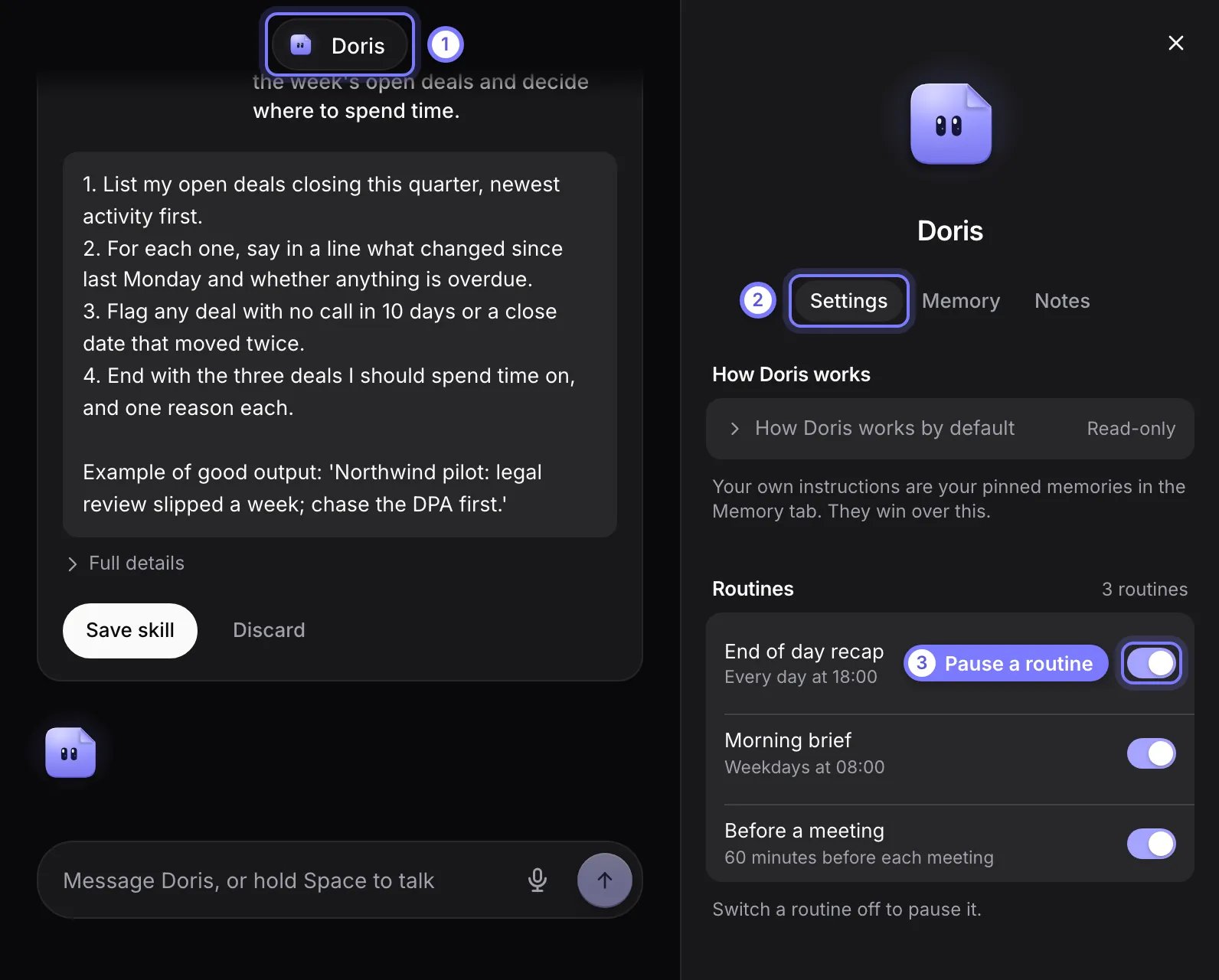
Doris's details panel, open on the right of the conversation. The Settings tab lists three routines, End of day recap, Morning brief and Before a meeting, each with an on and off switch. Memory and Notes tabs sit beside Settings.Doris's details panel, open on the right of the conversation. The Settings tab lists three routines, End of day recap, Morning brief and Before a meeting, each with an on and off switch. Memory and Notes tabs sit beside Settings.

Doris's details panel. (1) Select the Doris pill at the top of the conversation. (2) Settings lists her routines. (3) Switch a routine off to pause it. The Memory tab beside Settings holds what you pinned for Doris and what she learned.

Send a notetaker to a meeting

Select the notetaker button in the sidebar header, next to the collapse button. The menu lists today’s calls with Send now on each. For another call, paste a Zoom, Teams or Meet link and select Send. Read-only members do not see the button.

Use Doris in other AI tools

Select Connectors in the sidebar, find Doris Ontology and select Use in AI tools. See MCP server.