

1. Connect your tools
Sidekicks work from the calls, deals and people Doris already holds. Your workspace admin connects the CRM once for everyone (see the quickstart). You connect your own accounts in Connectors.- Select Connectors at the bottom of the sidebar.
- Under Your accounts, select Connect on Google or Microsoft 365 to connect your calendar. Select Connect on Zoom so Doris can capture your Zoom meetings.
- Under Accounts your Sidekicks use, connect the outside accounts your admin has allowed, such as Outlook Mail. Your Sidekicks act as you in them. If an account you need is missing, ask your admin to allow it in Sidekick settings.
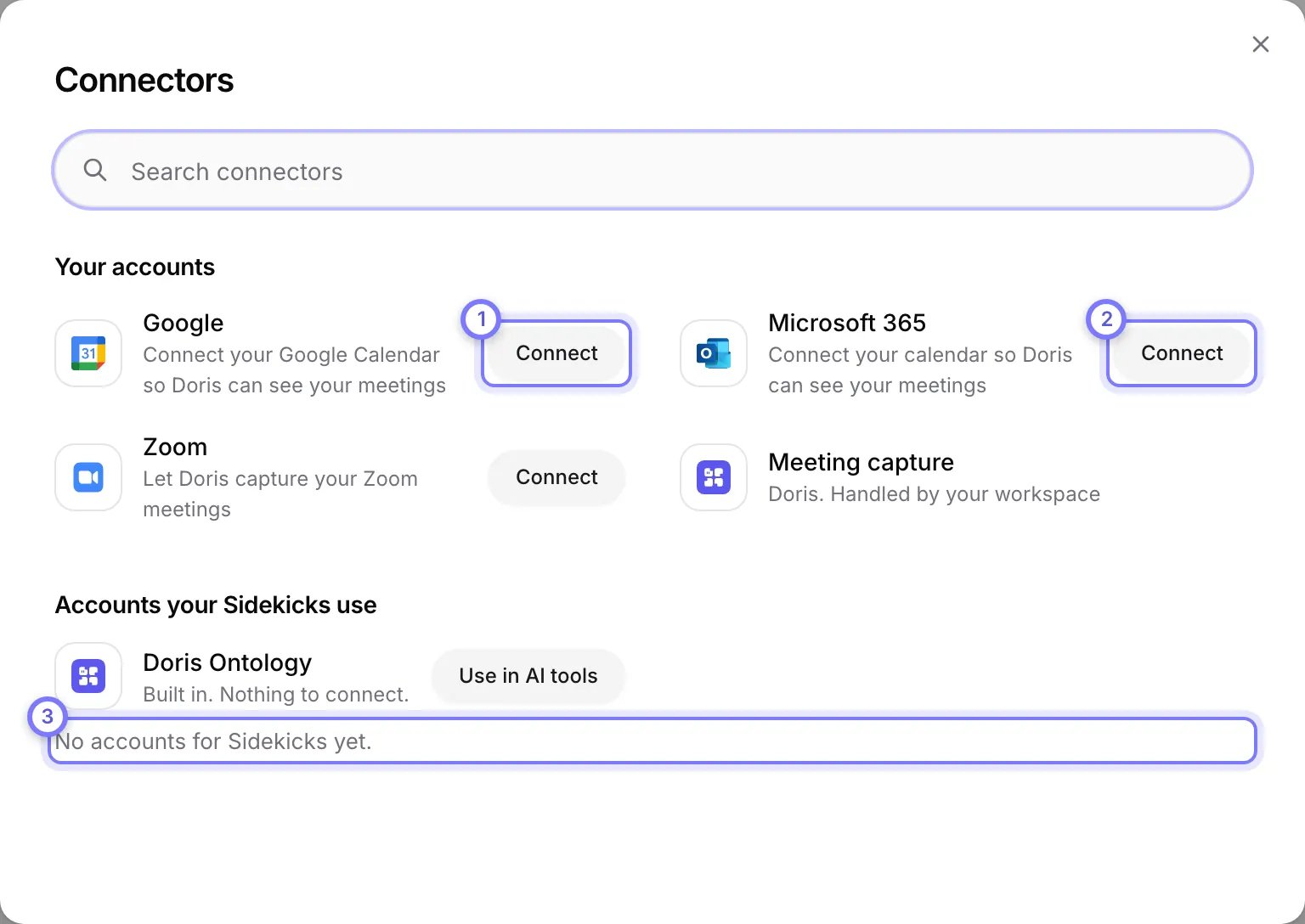
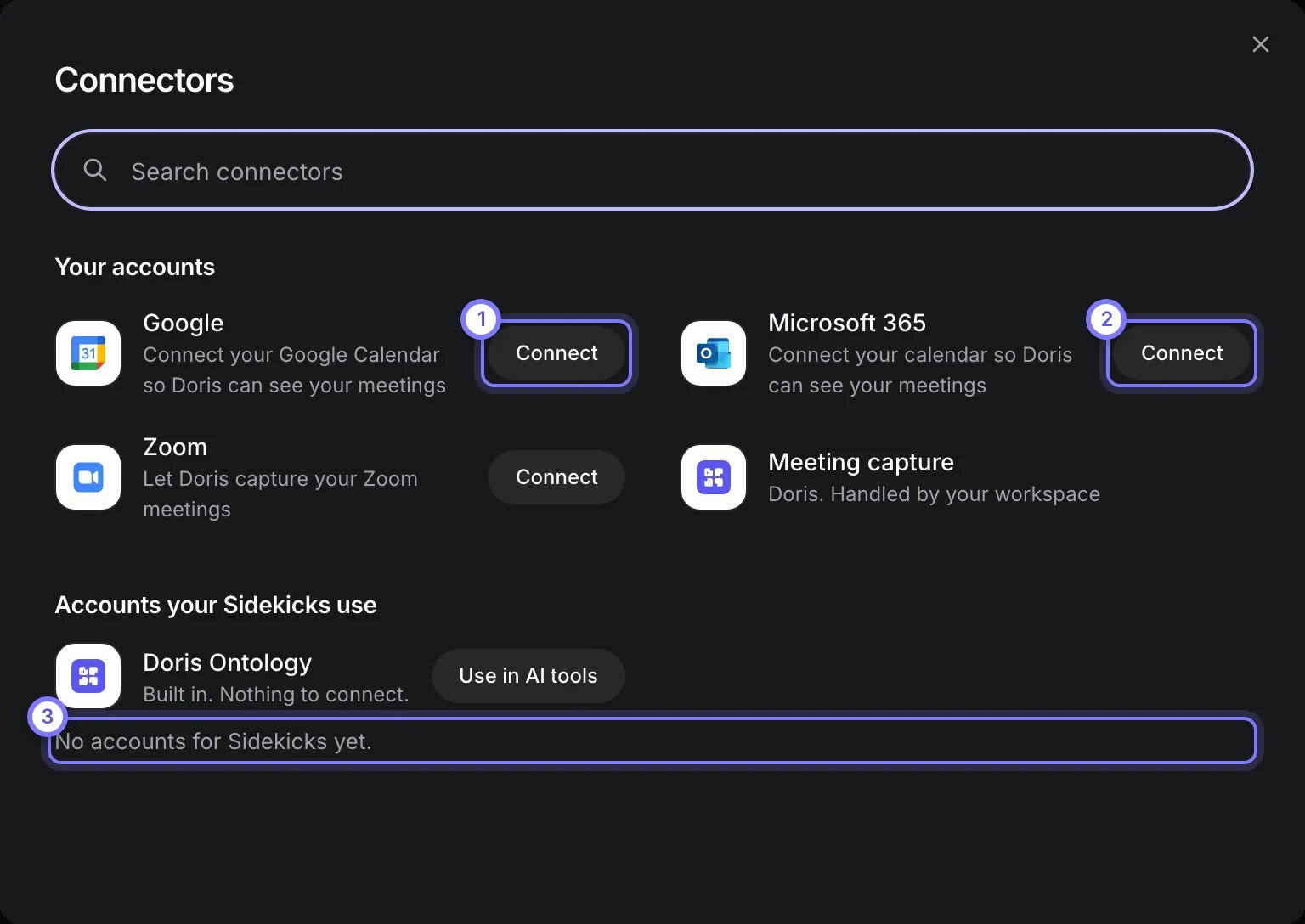
Connectors, from the bottom of the sidebar. (1) Select Connect on Google to connect your Google calendar. (2) Select Connect on Microsoft 365 if you use Outlook. (3) Accounts your Sidekicks use lists the accounts your admin has allowed for Sidekicks. This workspace has none yet. Google or Microsoft opens its own sign-in page, which this guide does not show.
2. Make a Sidekick with one sentence
Say what you want and when. For example: “Every Monday at 8am, email me a briefing on my deals closing this month.”- Select Sidekicks in the sidebar, then Doris at the top of the list.
- Type your sentence in the Message Doris box and press Enter.
- Doris answers with a draft on a card. It shows the Job, when it Runs and its Limits. Nothing exists until you confirm it.
- Select Create helper. To edit the draft first, select Change. To drop it, select Not now.


Type your sentence in the Message Doris box. (1) The box. (2) Press Enter, or select the arrow, to send it.
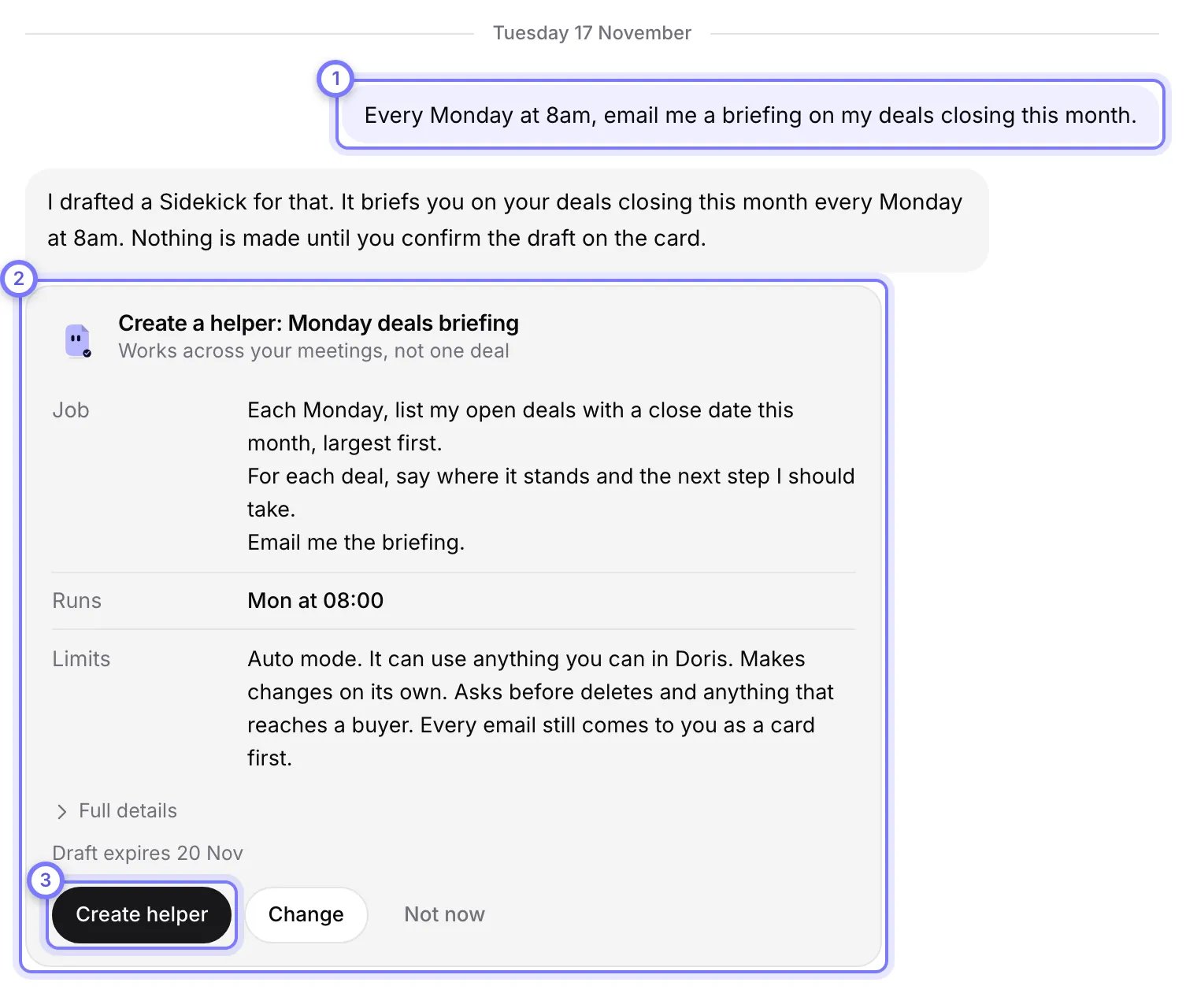
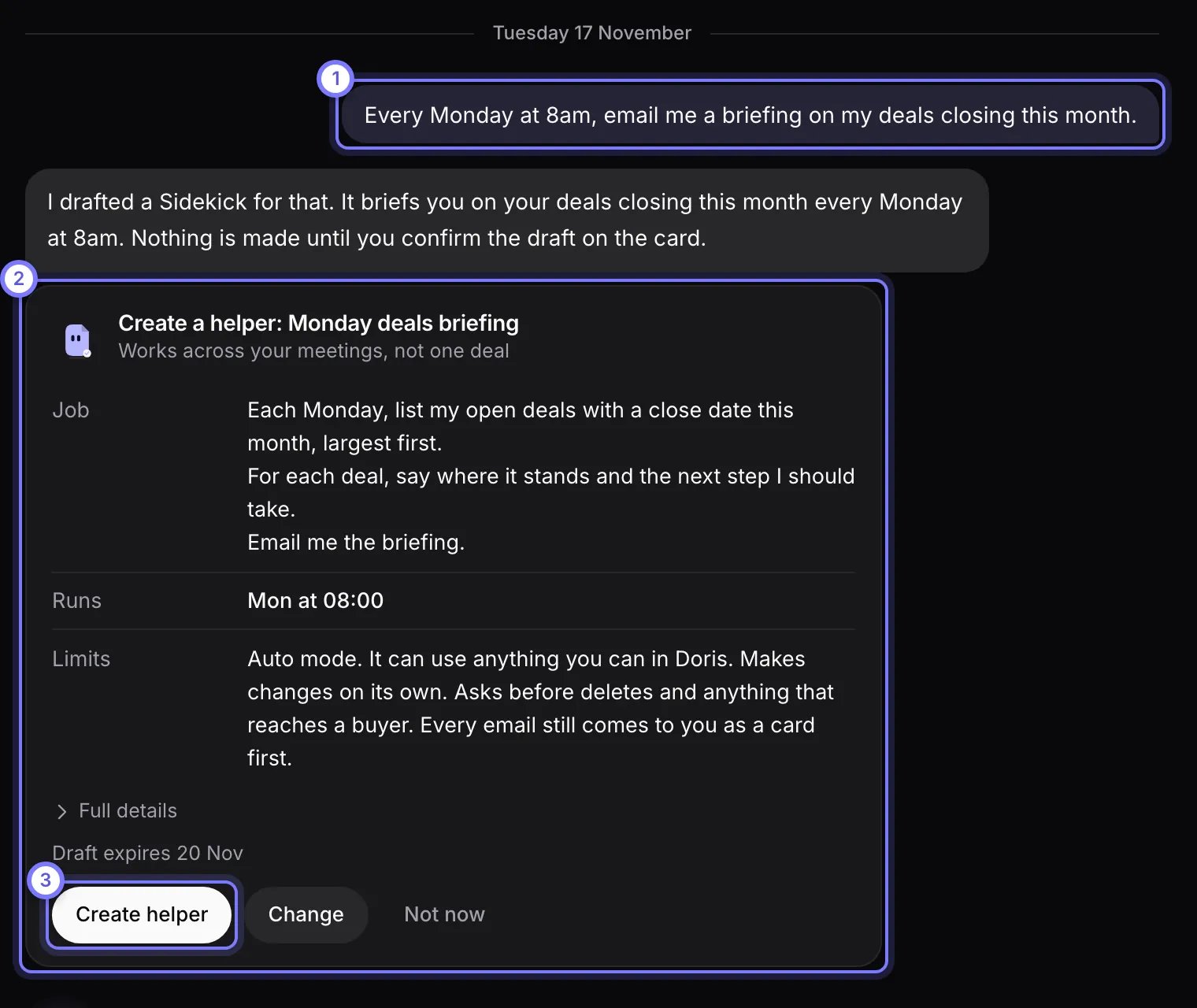
Doris answers with a draft on a card. (1) Your sentence. (2) The card shows the Job, when it Runs and its Limits. (3) Select Create helper to make it. Change edits the draft first, and Not now dismisses it. Nothing exists until you select Create helper.
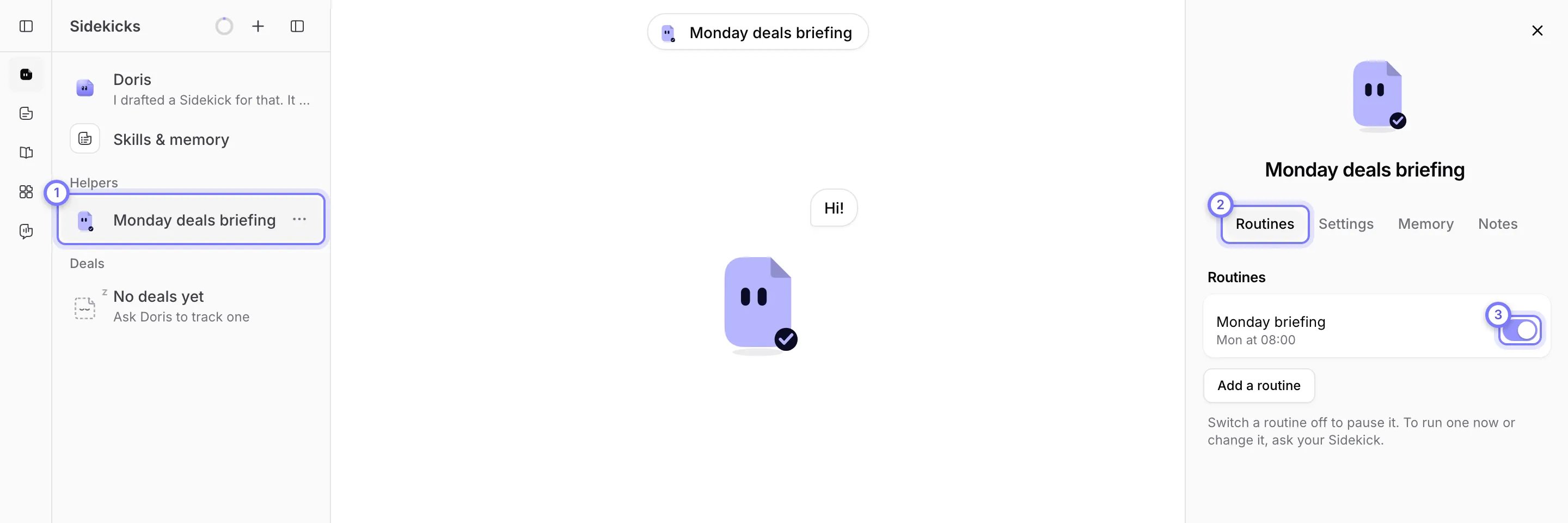
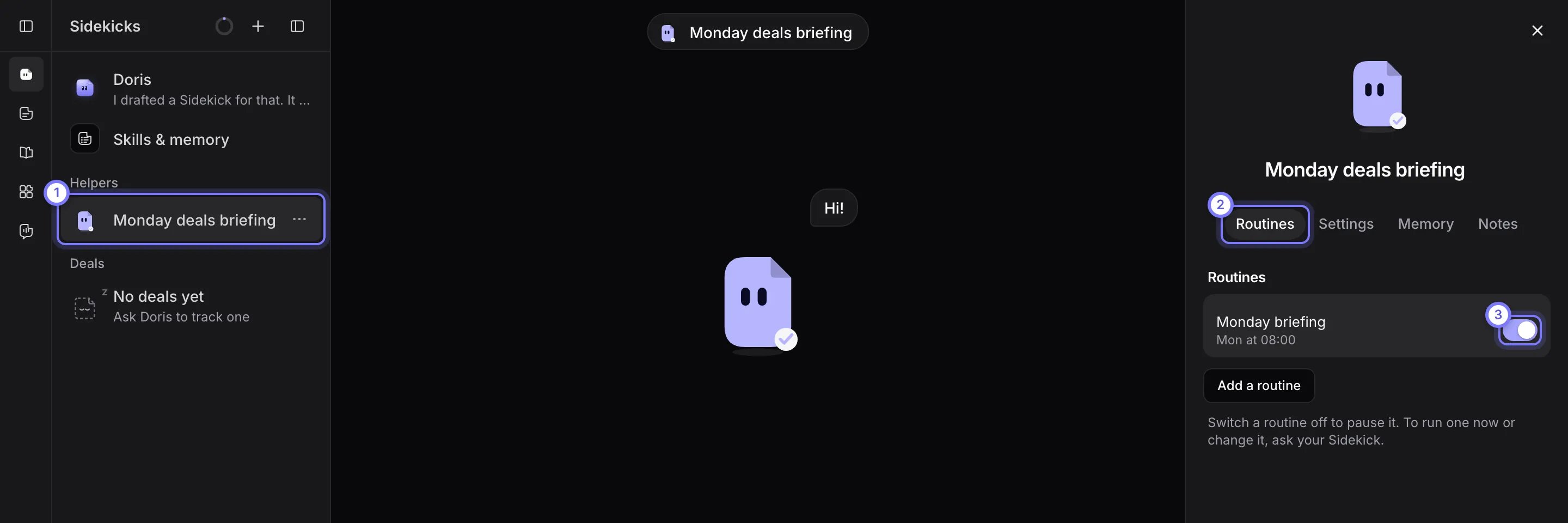
The Sidekick the card made. (1) Monday deals briefing is now under Helpers. (2) The Routines tab lists its routine. (3) Monday briefing runs on Mondays at 08:00, and the switch pauses it.
Use the plus button instead
To name a Sidekick and pick its look yourself, select the plus button at the top of the Sidekicks list. New Sidekick opens on a choice of starting points. Choose Start blank and select Continue. Type a name, choose a Shape, a Tint and what it Wears, then select Create. The new Sidekick asks what you want it to take on. Tell it the same sentence. The other starting points are templates: a Sidekick already set up by your company or by Doris. See step 6.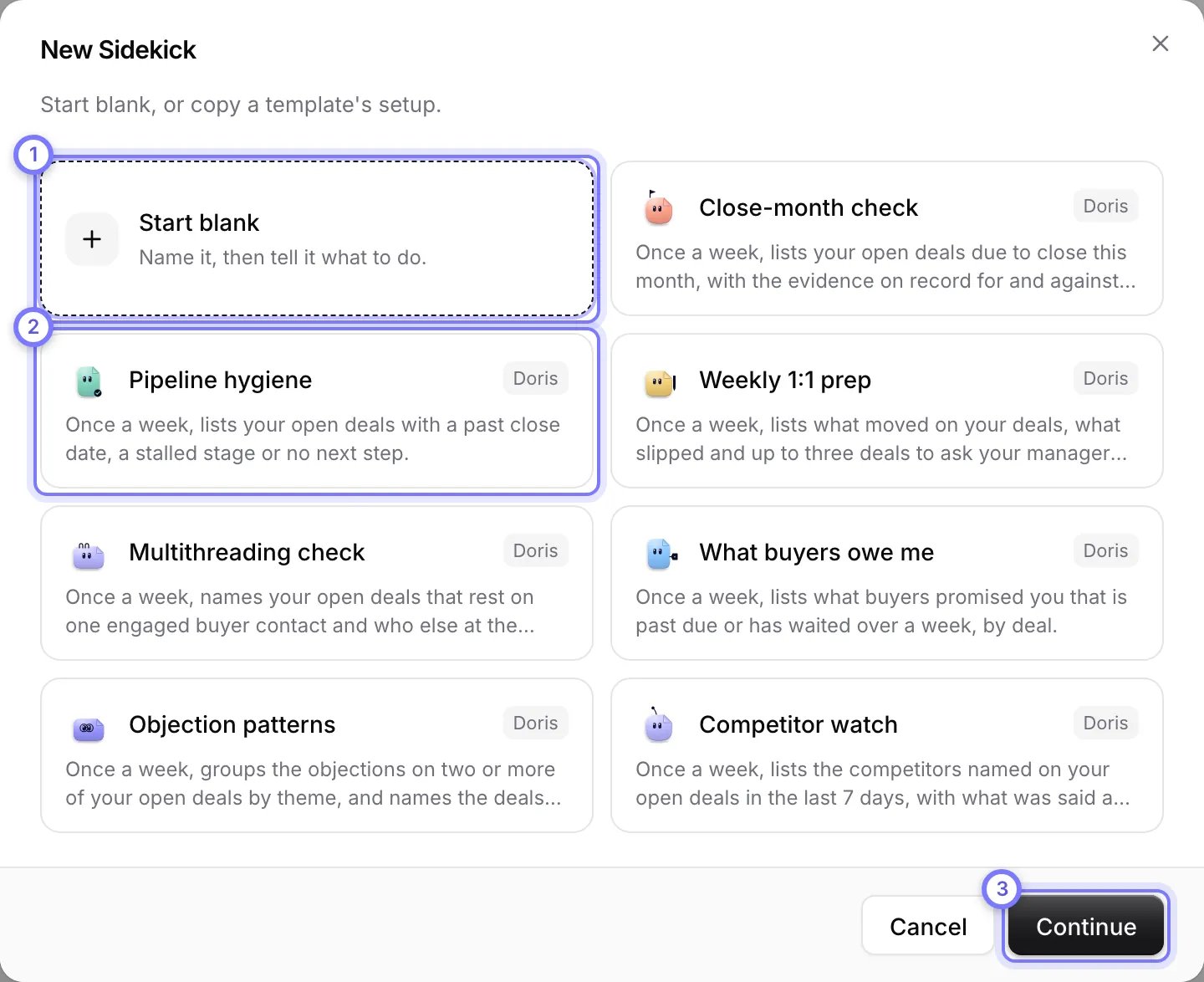
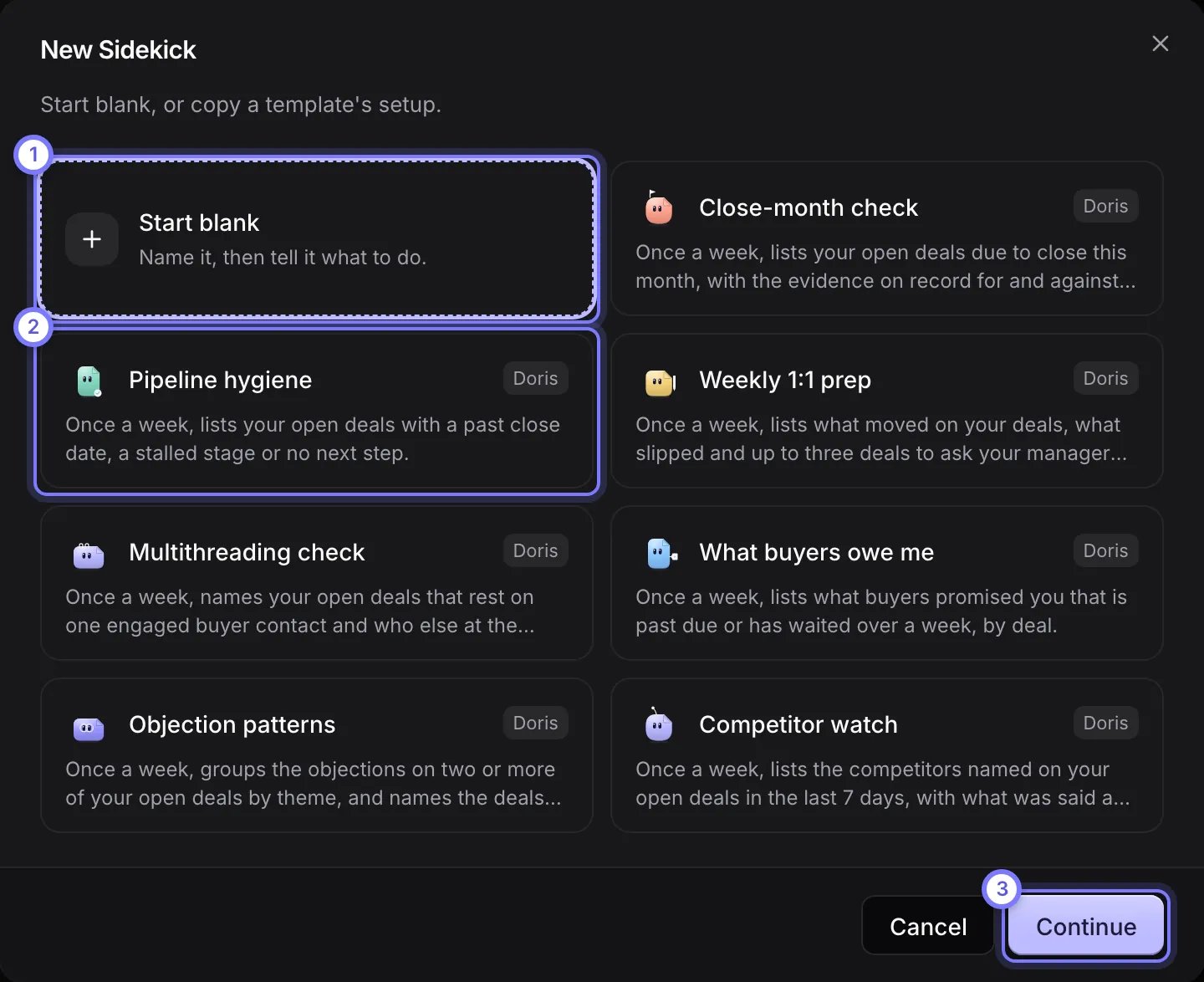
New Sidekick starts with a choice. (1) Start blank to name a Sidekick and tell it what to do. (2) Or pick a template, here Pipeline hygiene. (3) Select Continue.
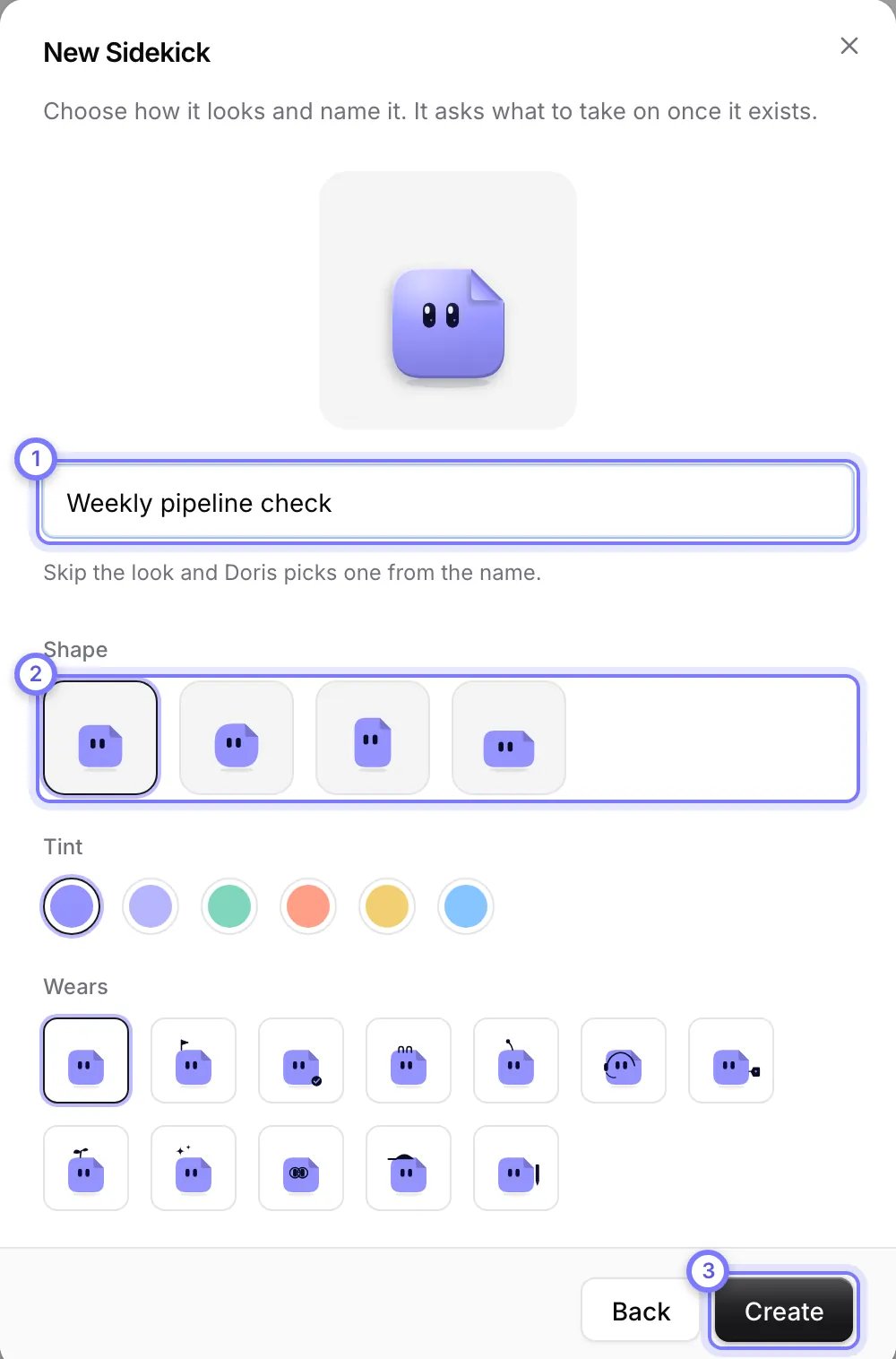
New Sidekick, after Start blank and Continue. (1) Type a name. (2) Choose a Shape, a Tint and what it Wears, or skip them and Doris picks. (3) Select Create. The new Sidekick then asks what you want it to take on.
3. Ask for a routine
A routine is a standing task. It repeats on the days of the week you name, at the time you name. Ask for one in plain words, to Doris or to the Sidekick. A manager might say: “Every Monday at 8am, report on pipeline coverage.” The Sidekick saves the routine at once and posts a note with Undo. Open its Routines tab to see the day and time. The switch pauses the routine.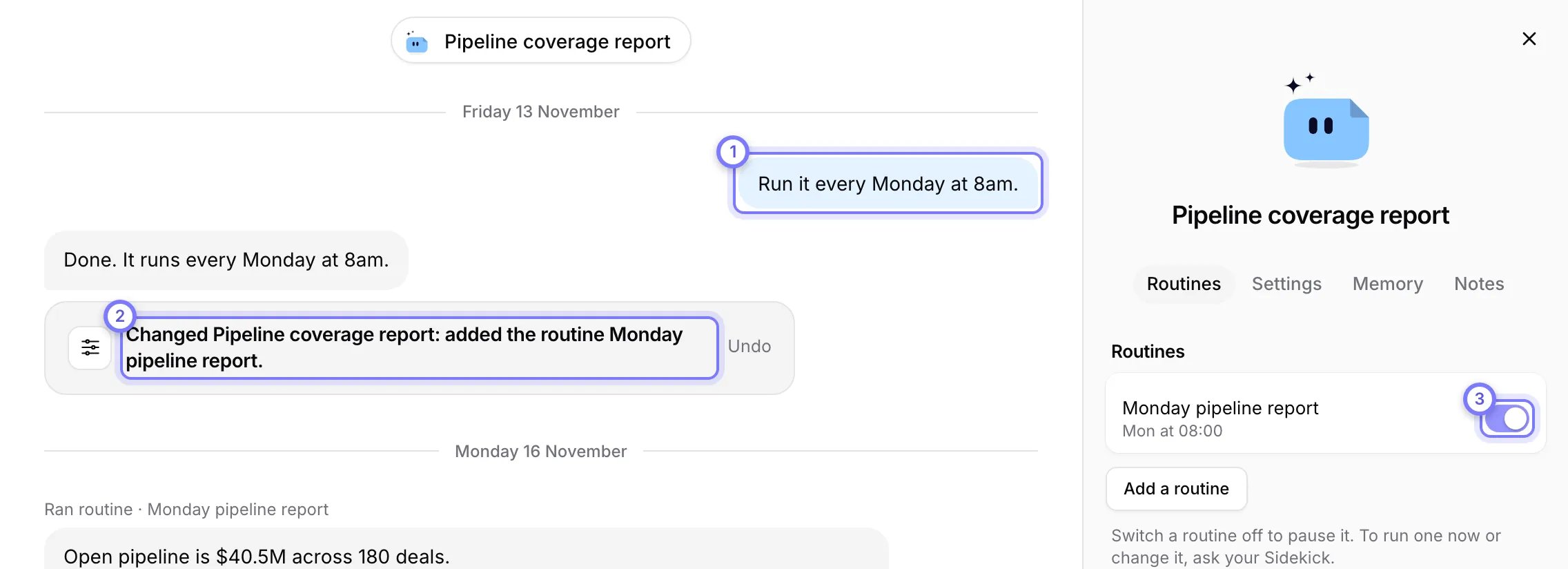
A routine added in plain words. (1) You ask: "Run it every Monday at 8am." (2) The Sidekick saves it and posts a note with Undo. (3) The Routines tab lists it with its day and time, and a switch to pause it.
4. See and change what it makes
Each run posts its result in the Sidekick’s conversation. A dot on its row in the Sidekicks list means something waits for you. Needs you is a decision and Update is news. To change what it makes, tell it in plain words, such as “Make it shorter” or “Always make a canvas for this”. The Sidekick saves the change as a standing instruction and posts a note with Undo. Its scheduled runs follow the instruction from then on.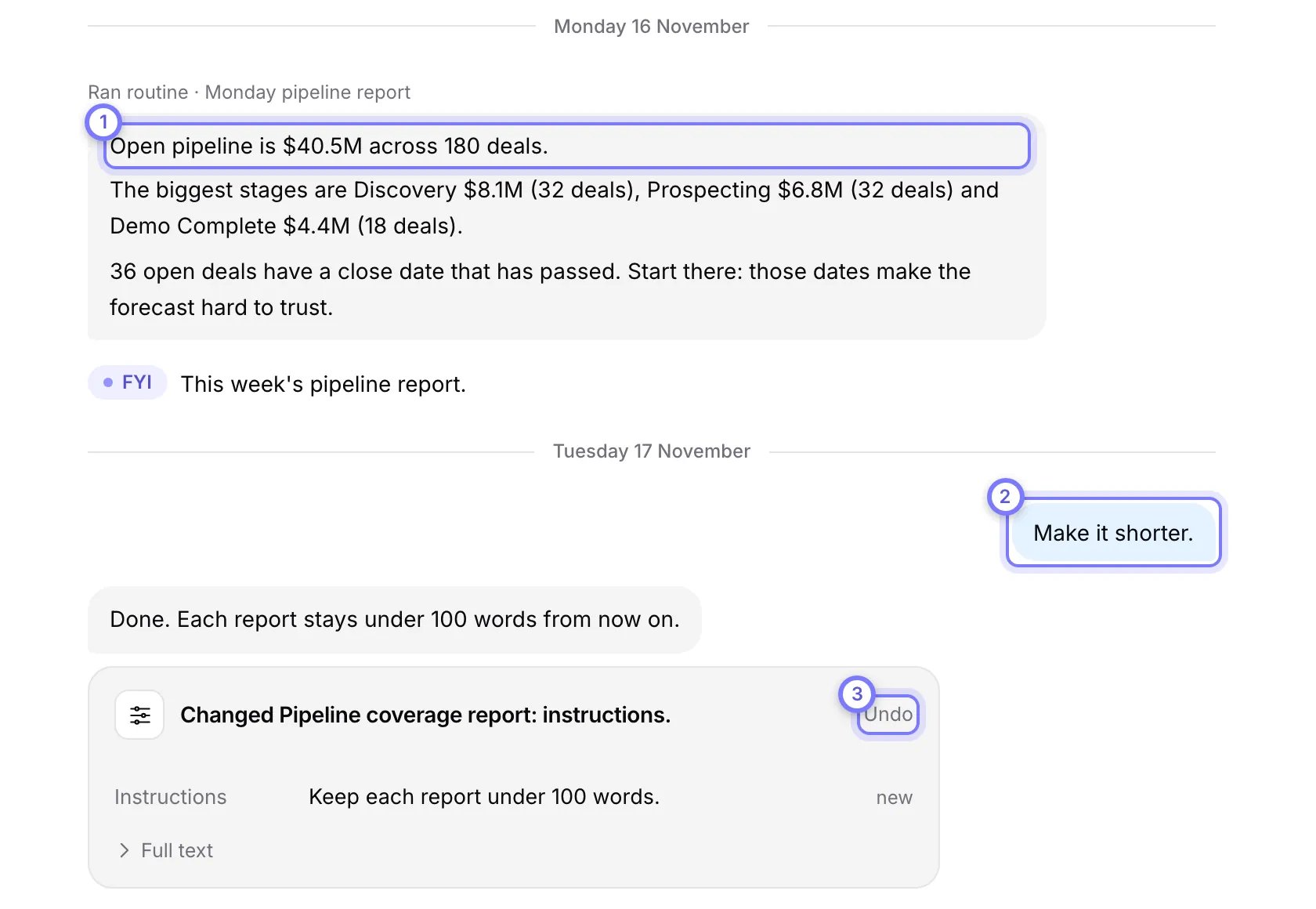
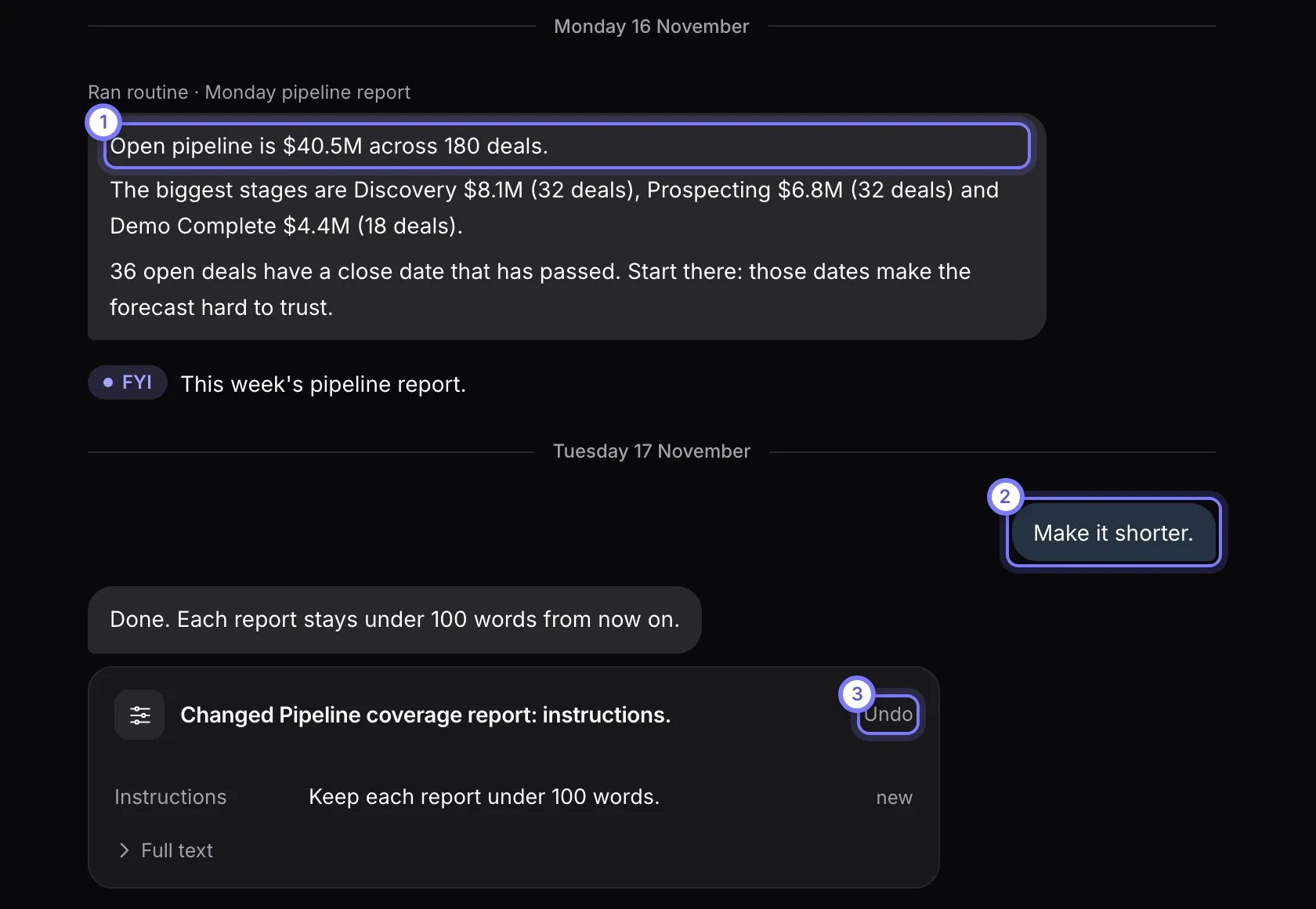
A run and a change. (1) Each run posts its result in the Sidekick's conversation. (2) Tell the Sidekick what to change, in plain words. (3) It saves the change and posts a note with Undo.
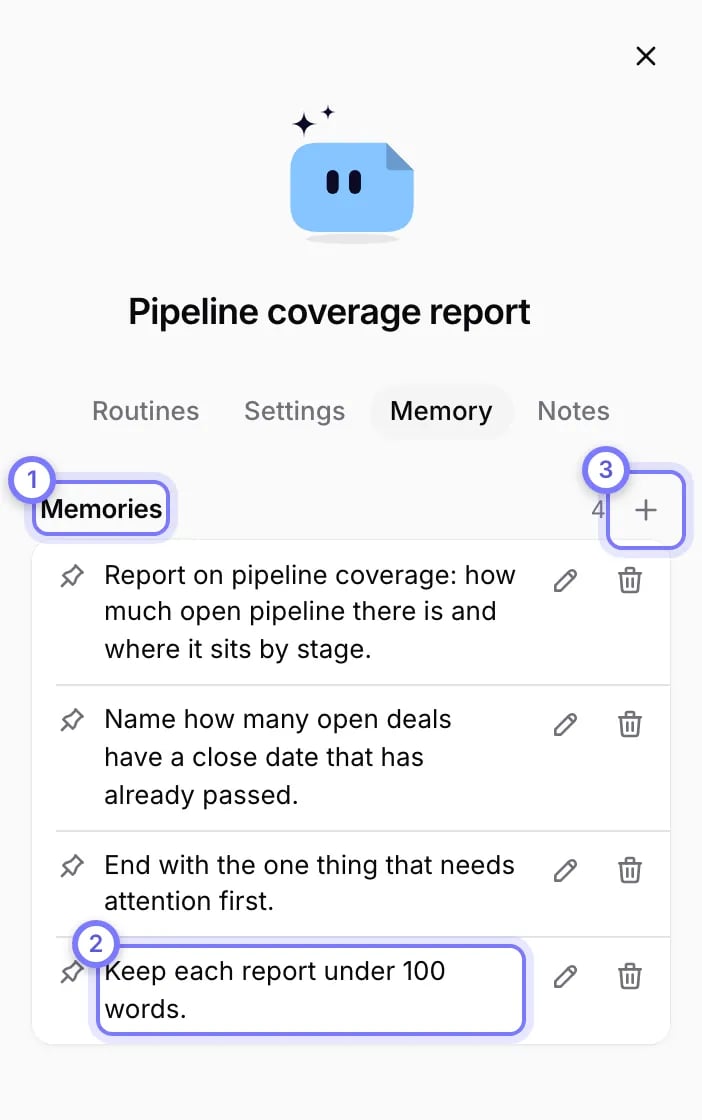
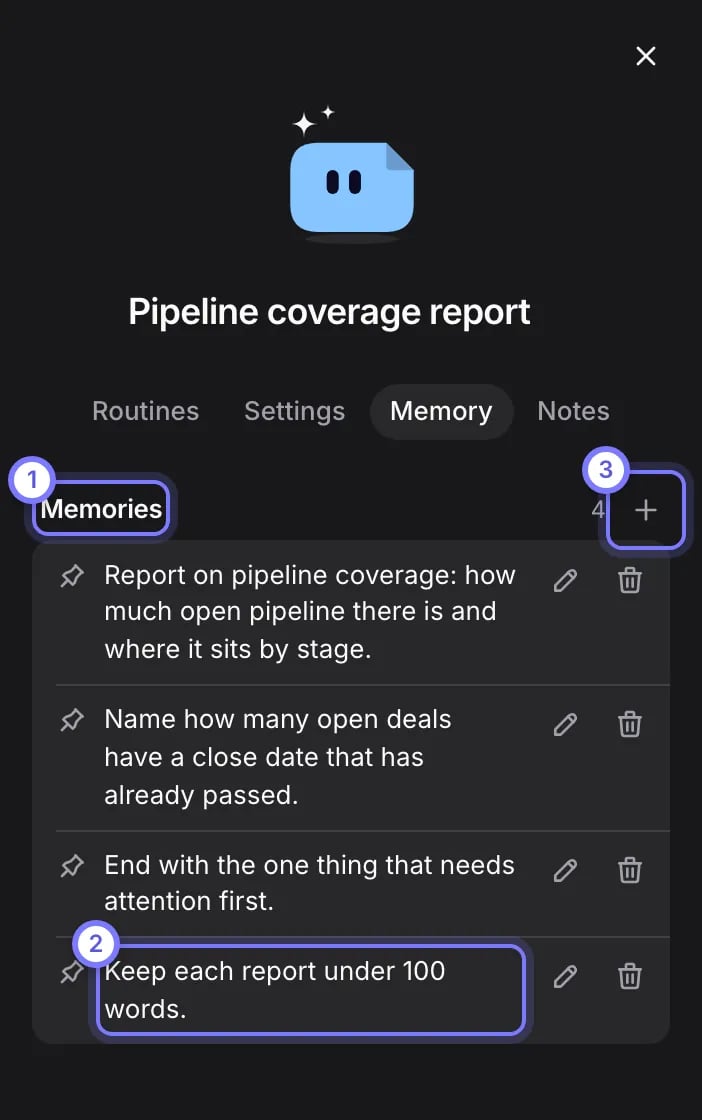
The Memory tab. (1) Each pinned memory is a standing instruction the Sidekick follows on every run. (2) The change you asked for in plain words is the last one. (3) The plus button adds one by hand. Edit and Remove change or drop an entry.
5. Get told when it runs
A Sidekick tells you in its conversation and with the dot on its row. It can also email you. Each Sidekick has its own Emails to you switch, and so does Doris.- Ask in your sentence. When you ask a Sidekick to email you, it asks once, on a card. Select Allow Sidekick to email me.
- Use the switch. Open the Sidekick’s details panel, then Settings. Turn on Emails to you. Turn it off to stop them.
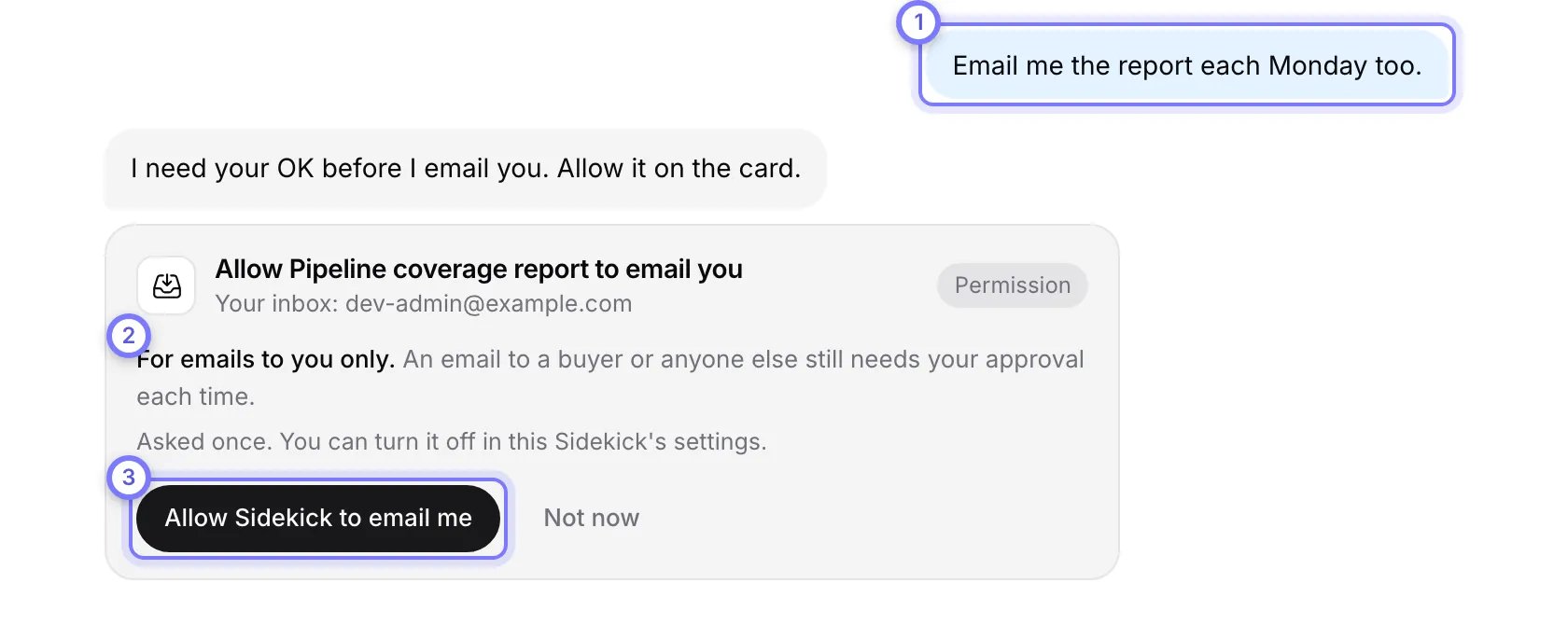
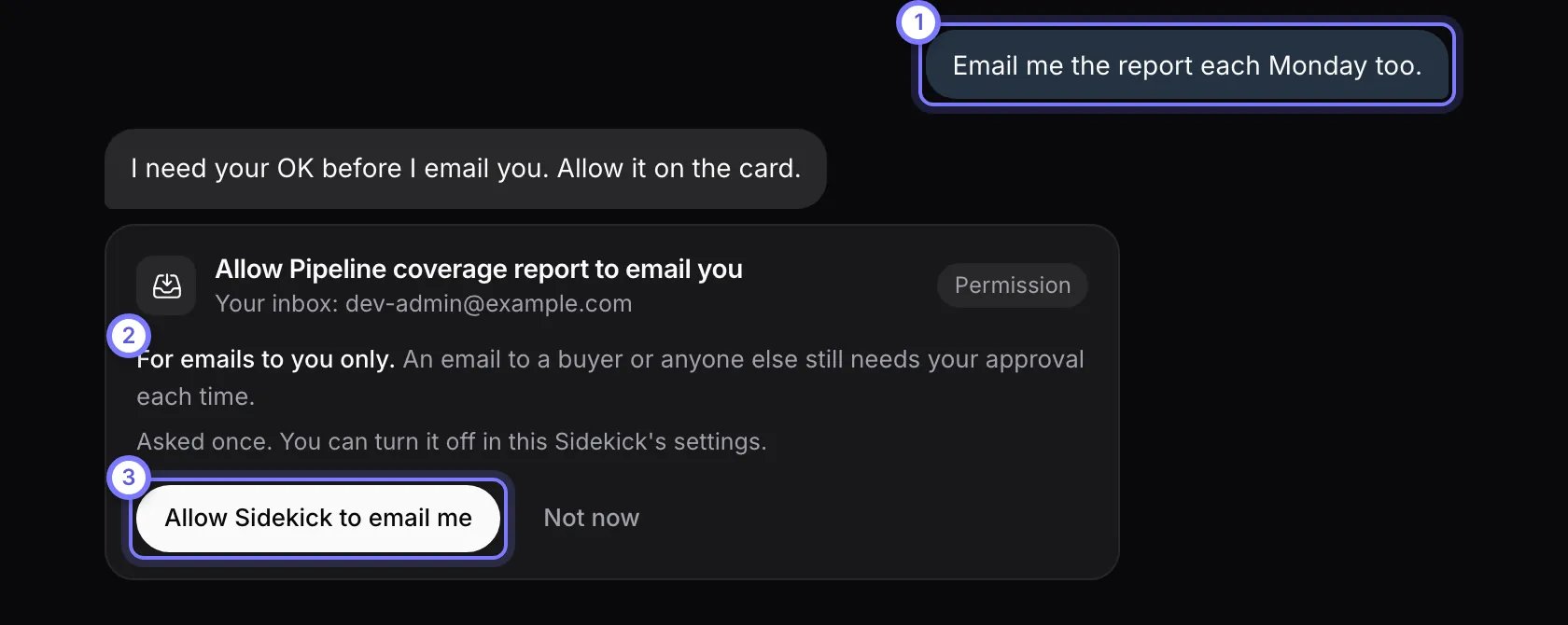
A Sidekick asks once before it emails you. (1) You ask for the email. (2) The card says the permission covers emails to you only. (3) Select Allow Sidekick to email me. Not now leaves it off.
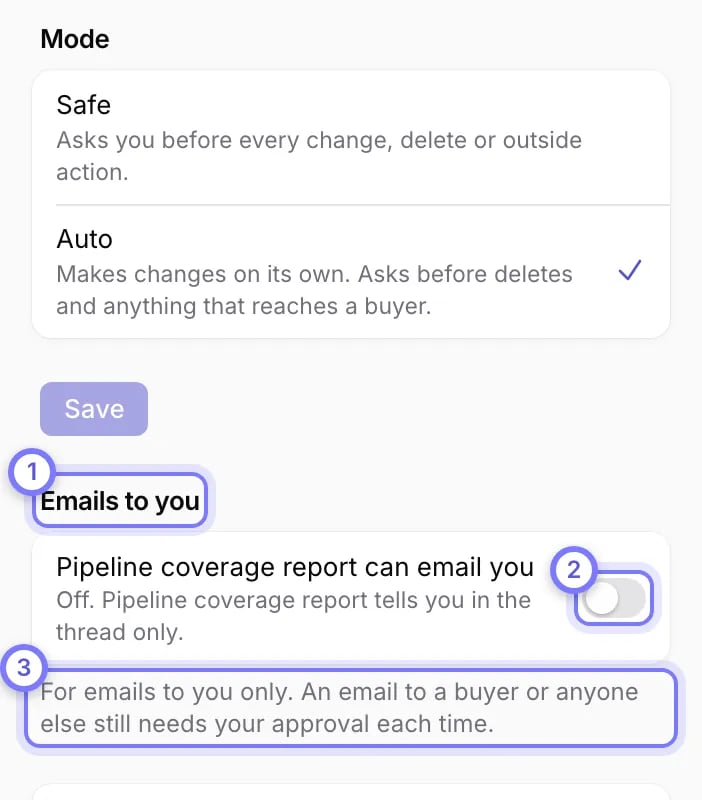
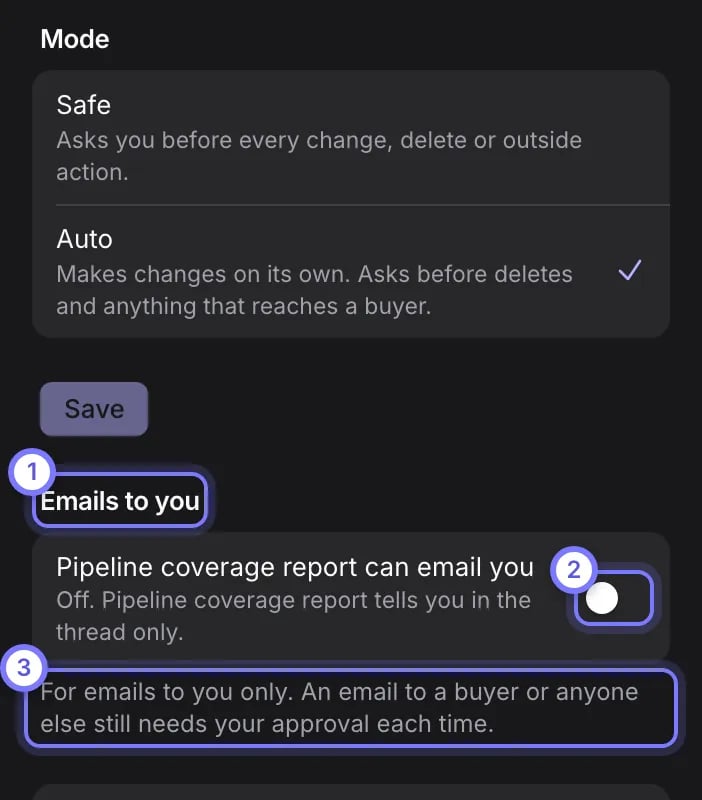
The Settings tab. (1) Emails to you has one switch for this Sidekick. (2) Turn it on and the Sidekick can email you. Turn it off to stop the emails. (3) An email to a buyer or anyone else still needs your approval each time.
6. Set it up for your team
Each person owns their Sidekicks. A workspace admin sets what applies to everyone:- The highest mode and the accounts. Under Settings > Workspace > Sidekicks, an admin sets the highest mode Sidekicks may run in and which outside accounts members may connect. See Sidekick settings.
- Usage and approvals. Under Settings > Workspace > Usage, an admin sees who is near the weekly allowance, and each person’s Sidekicks and approvals. A Sidekick’s conversation stays private to its owner. See Team & Usage.
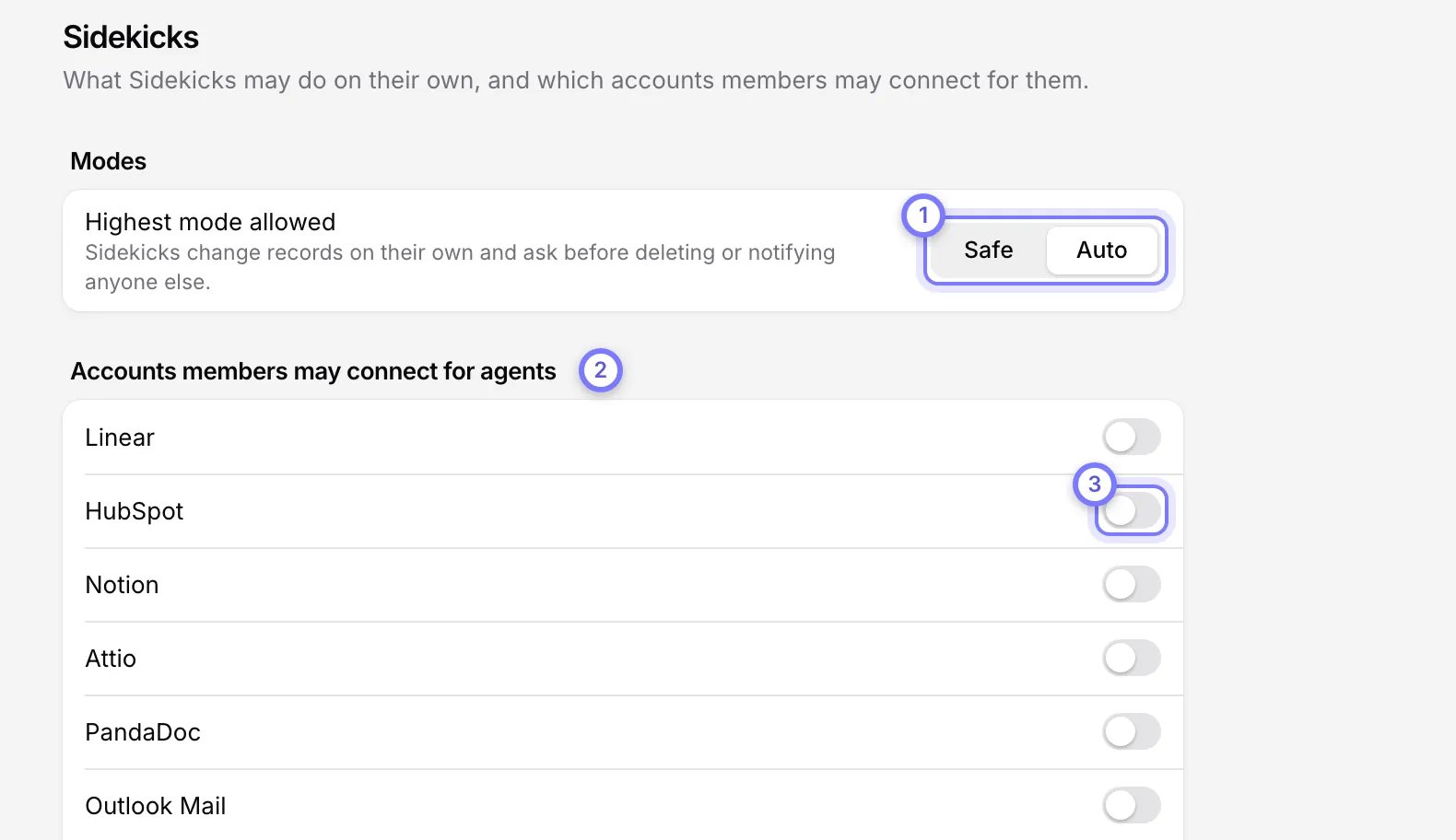
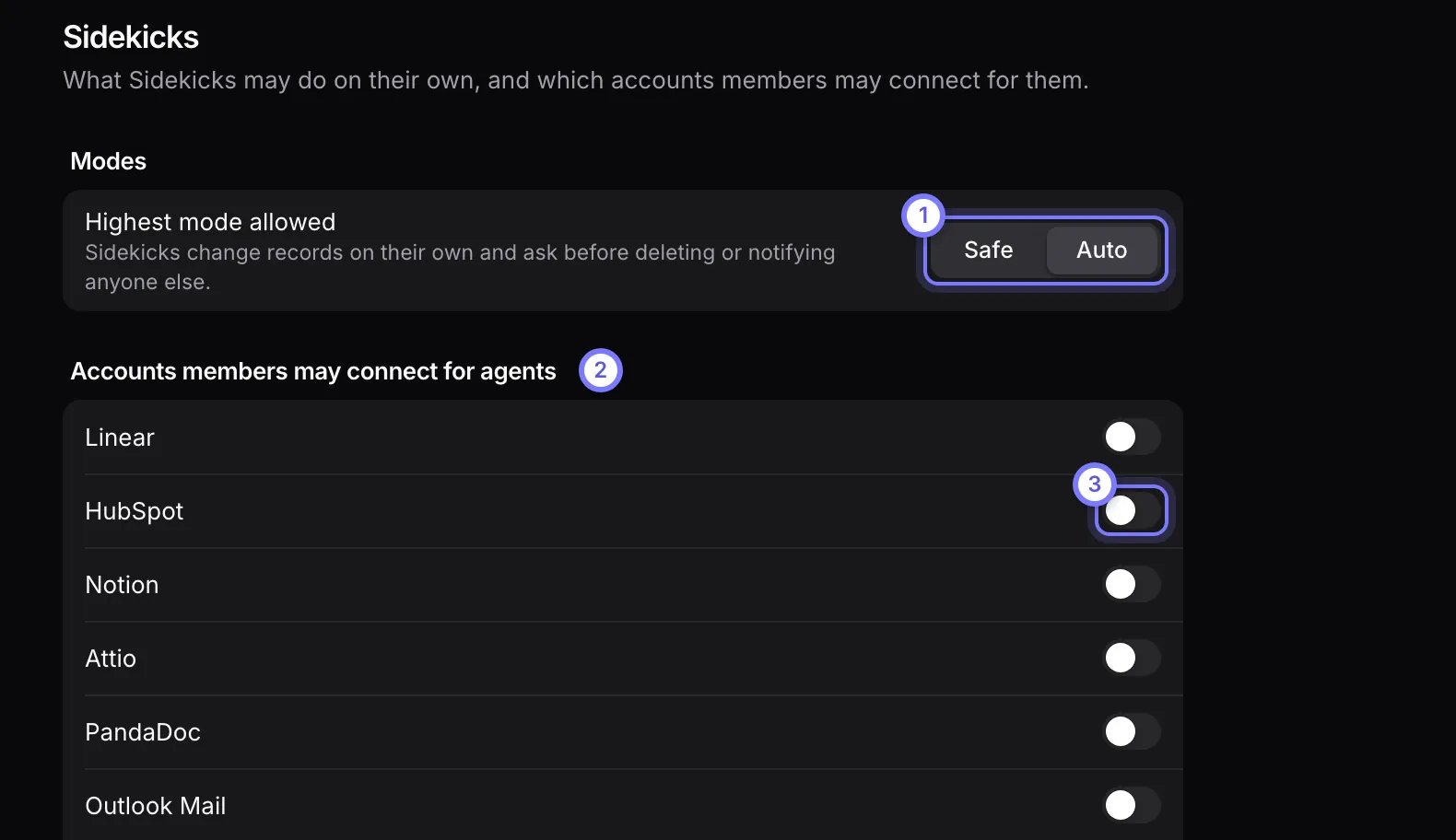
Settings > Workspace > Sidekicks. (1) Highest mode allowed sets the ceiling for every Sidekick. (2) Under Accounts members may connect for agents, (3) each switch allows one outside account.
Share a Sidekick as a template
You can share a helper, the Sidekicks you made under Helpers. Deal and account Sidekicks cannot be shared.- In the Sidekicks list, select the ⋯ on the helper’s row, then Share as template. Or open the helper, open its details, select the Settings tab, then select Share as template.
- Check what your colleagues get: its name and look, your instructions, its tools, its mode and its routines. Each routine arrives switched off. Your Sidekick’s memory, conversations, connected accounts and run history stay with you.
- Select Send for approval. A workspace admin approves it before anyone else sees it. Until then your template shows Waiting for admin.
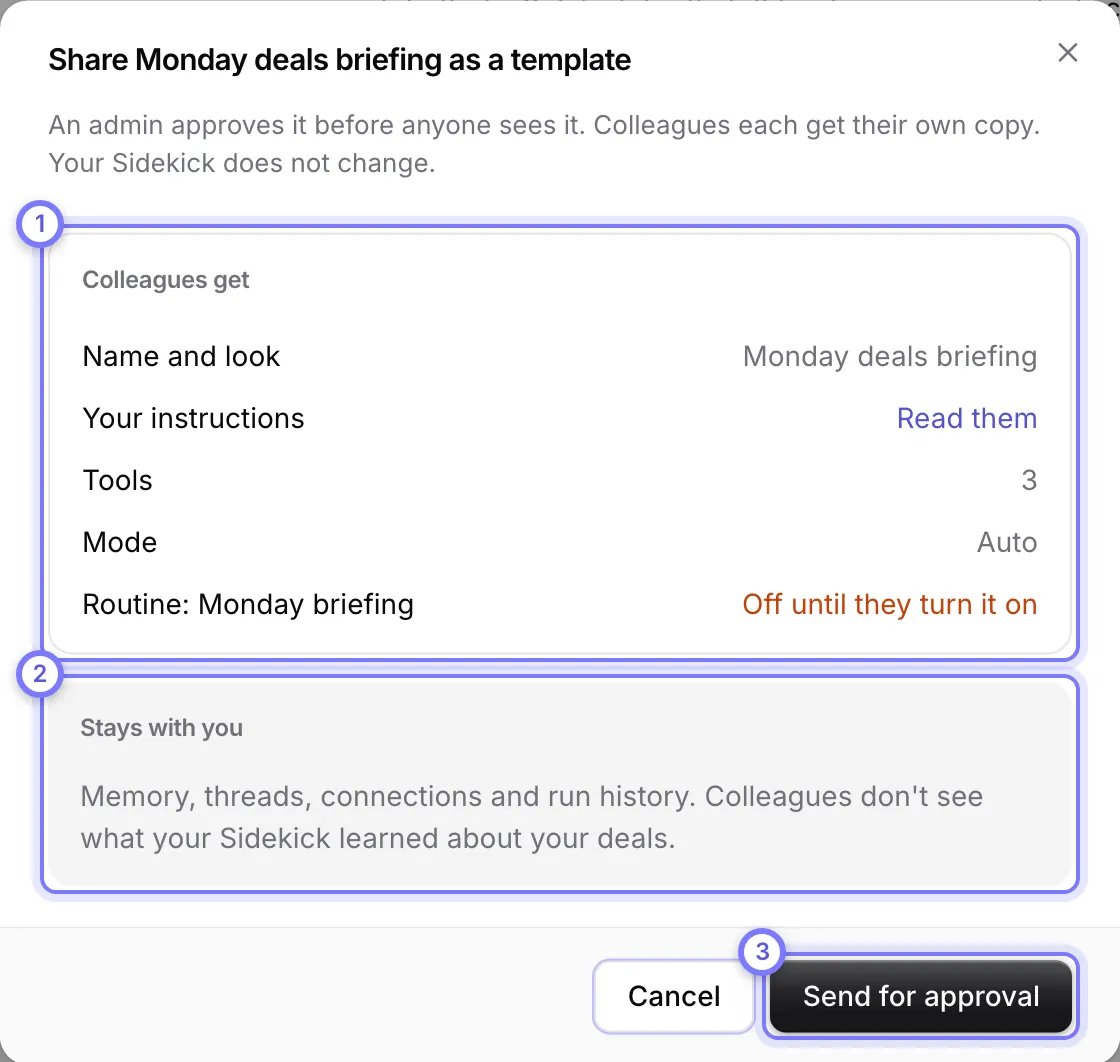
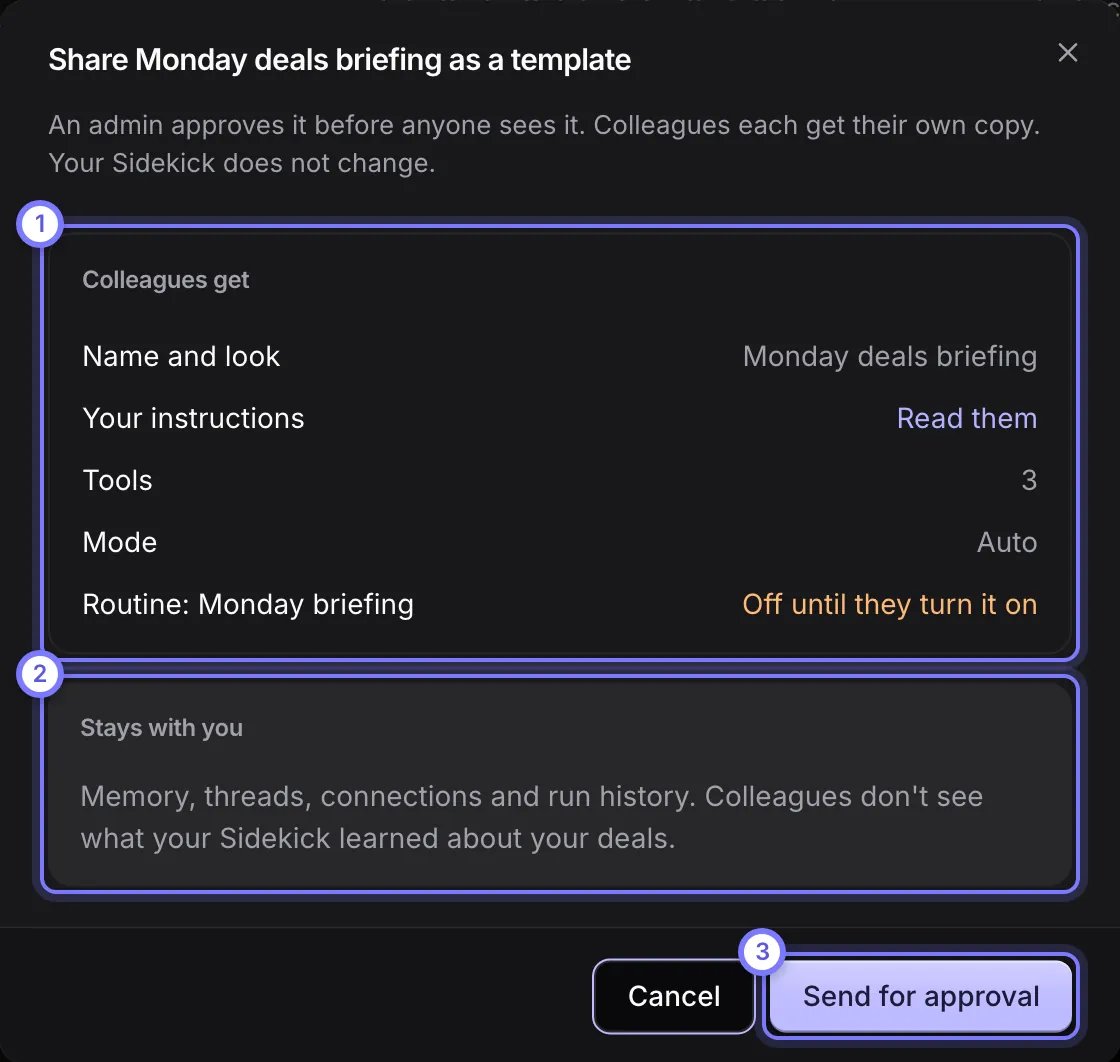
Share as template, from the ⋯ menu on a helper. (1) Colleagues get lists what the template copies. (2) Stays with you lists what it never copies. (3) Select Send for approval, and an admin approves it before anyone can use it.
Approve a template (admins)
Open Library under Doris in the Sidekicks list. Under Templates, select Approvals. Open a template to read everything it carries, including each routine. Select Approve to offer it to the whole company, or Reject.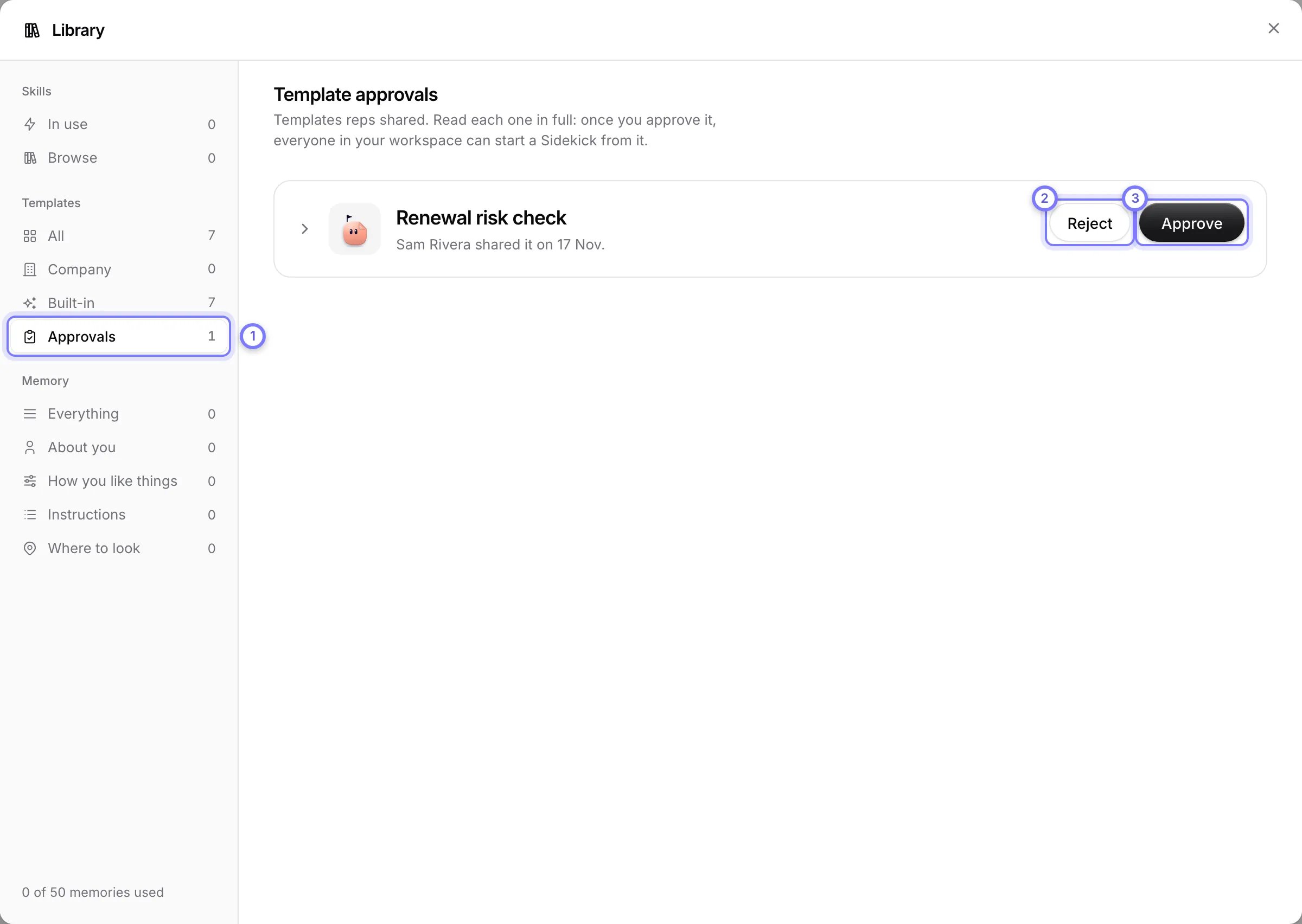
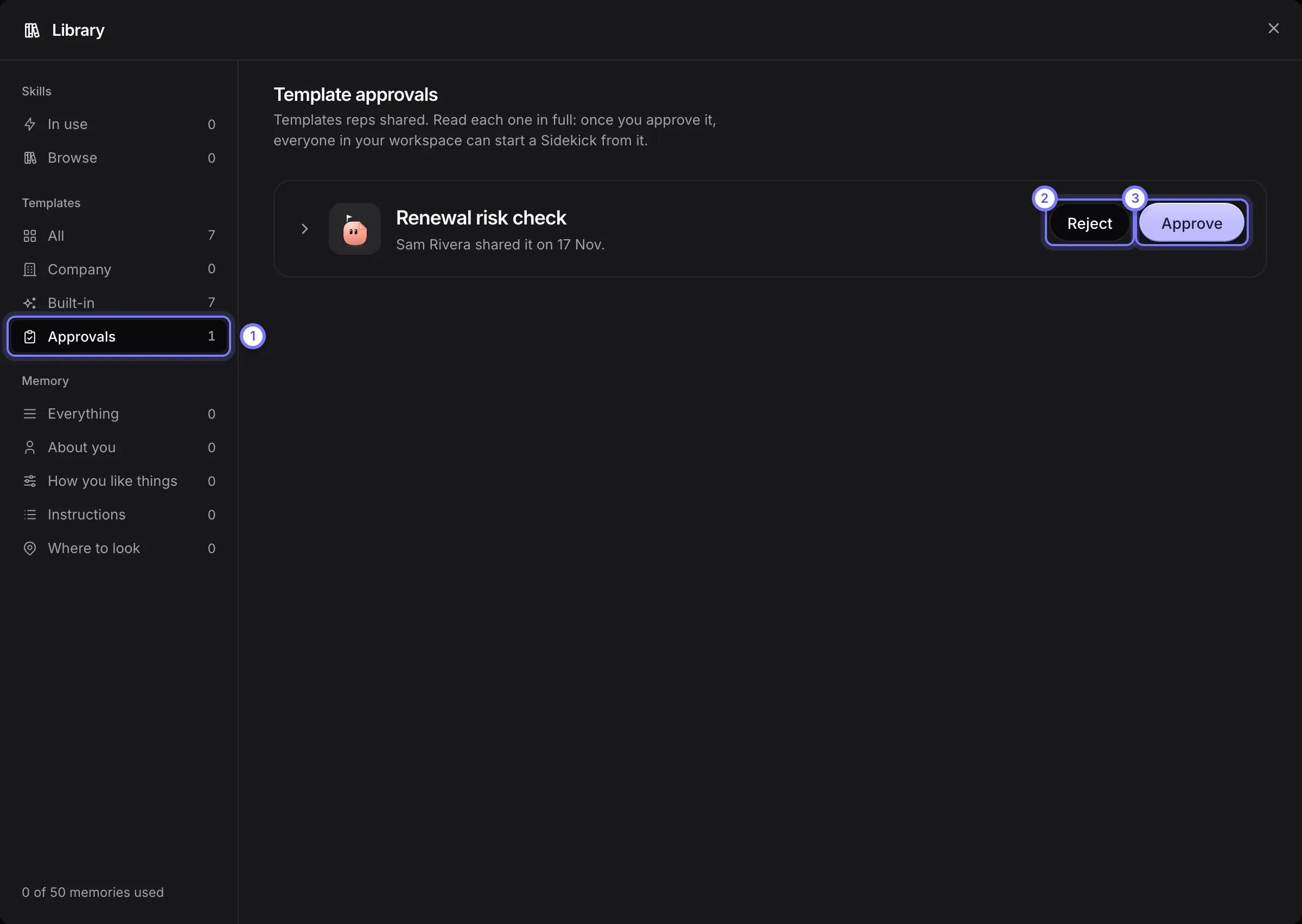
Library > Templates > Approvals, which only admins see. (1) Open Approvals. (2) Reject leaves the template unpublished. (3) Approve lets everyone in your workspace start from it.
Start from a template
Two ways in:- Select the plus button at the top of the Sidekicks list. New Sidekick lists the templates after Start blank. Choose one and select Continue.
- Open Library under Doris, then Templates. Company holds the ones your colleagues shared, and Built-in holds the ones Doris ships, such as Pipeline hygiene and Weekly 1:1 prep. Select Use on one.
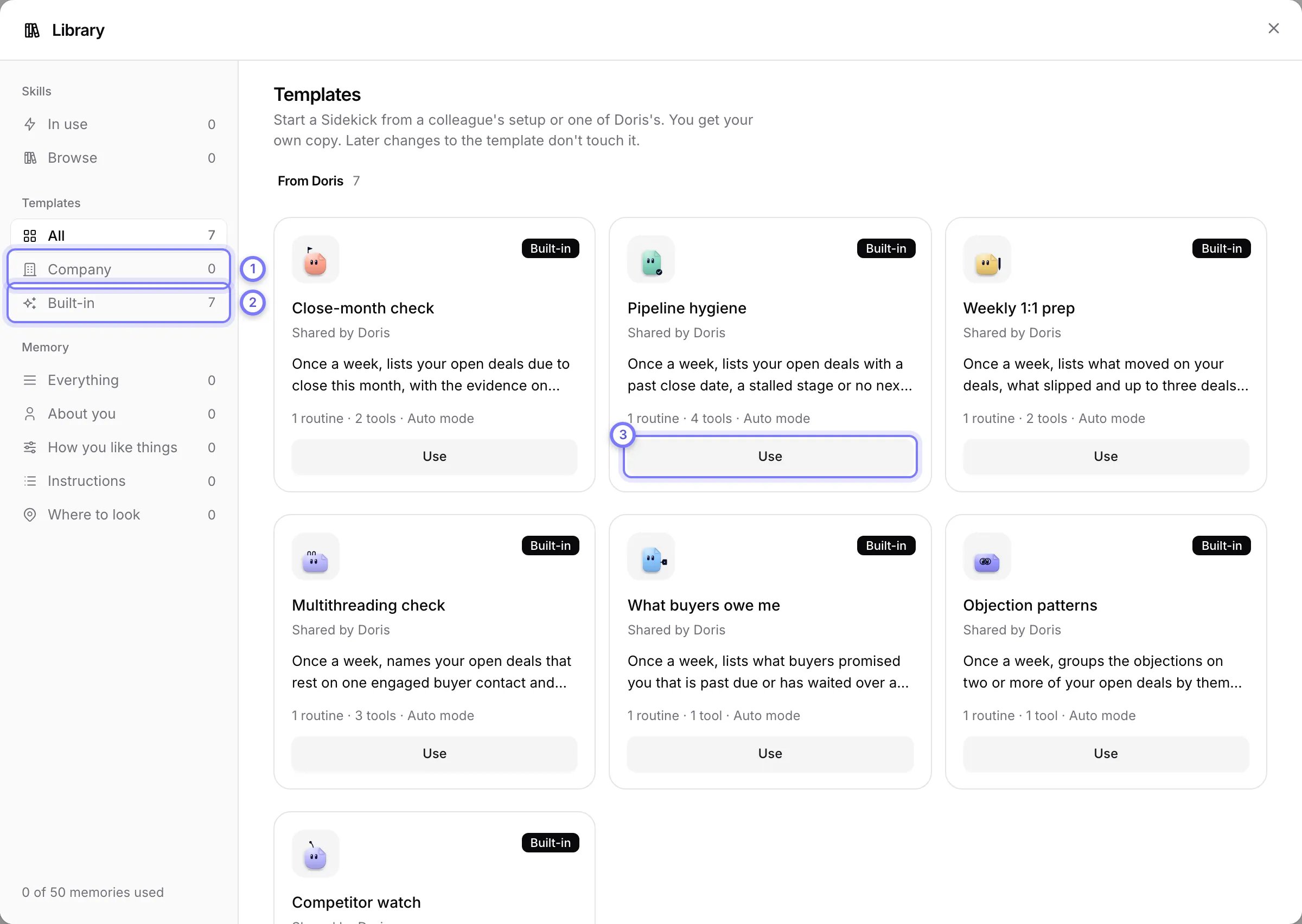
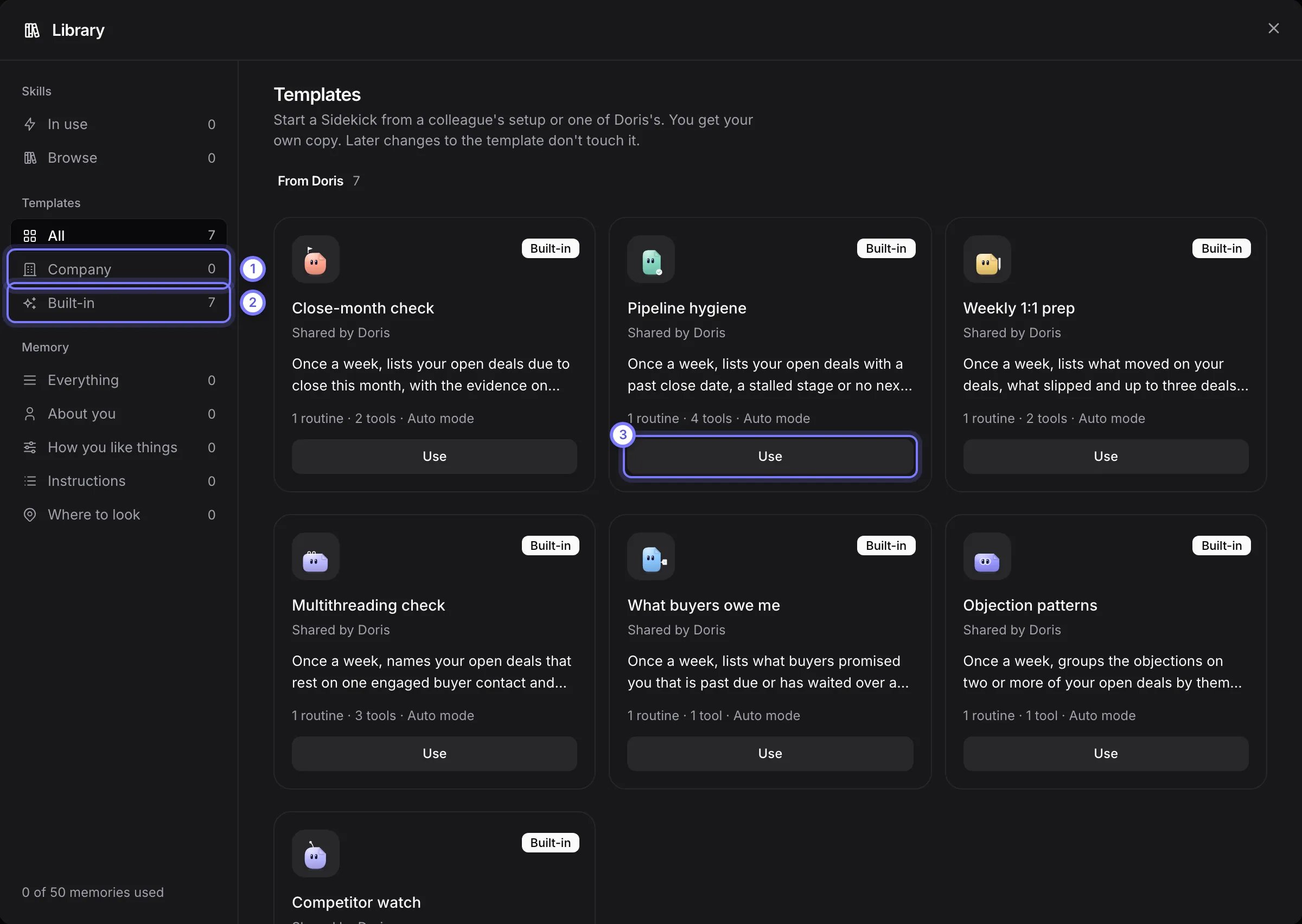
Library > Templates. (1) Company lists the templates your admins approved. (2) Built-in lists the ones that come with Doris. (3) Select Use on a card to start your own copy.
7. Sidekick or Flow?
A Sidekick is for work that belongs to one person and needs judgement. A Flow is for work that runs the same way for everyone in the company and follows fixed steps. “Update these HubSpot fields after every call, for all reps” is a Flow. “Brief me on the deals I am worried about” is a Sidekick. Only workspace admins build Flows. See Flows.Questions
Do I have to build my own Sidekick?
Do I have to build my own Sidekick?
What do I use for the daily briefing, meeting prep, account plans, meeting summaries and leadership reports?
What do I use for the daily briefing, meeting prep, account plans, meeting summaries and leadership reports?
Will these notify me like before?
Will these notify me like before?
Can I see and change what it makes?
Can I see and change what it makes?
How do we keep it the same across a team?
How do we keep it the same across a team?