

Doris does not search Knowledge. Your memory lives in Library > Memory. See Doris.
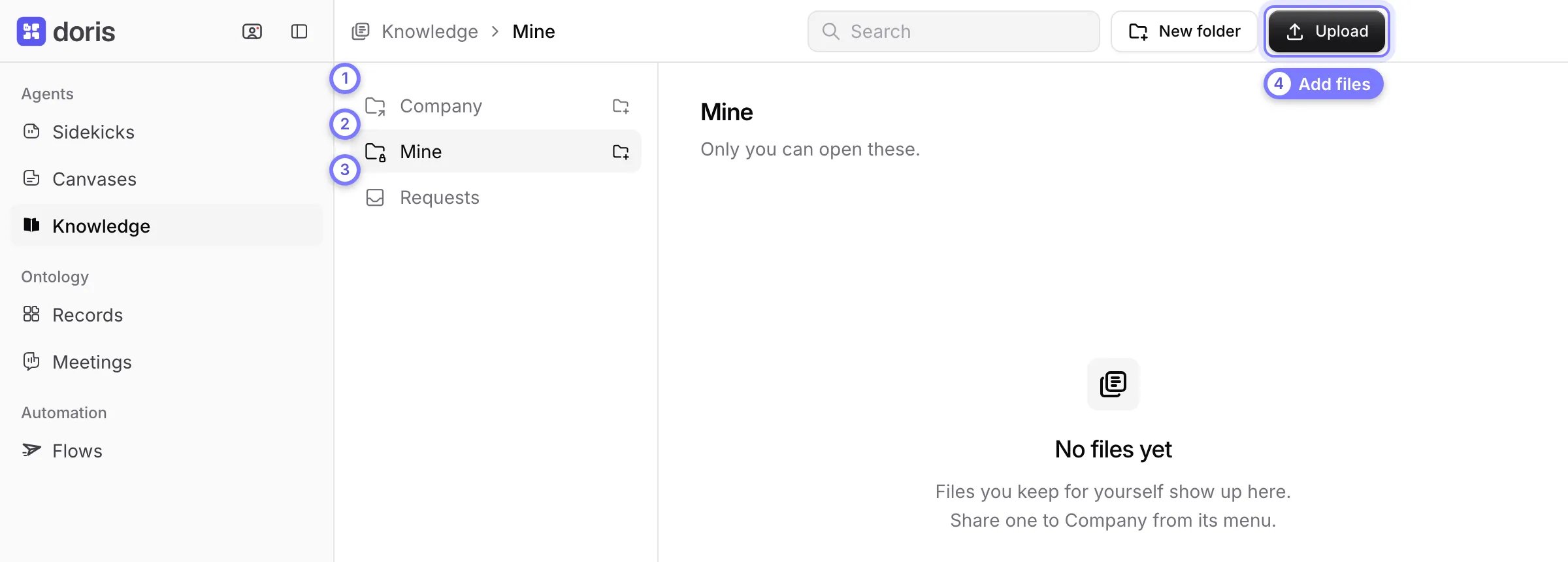
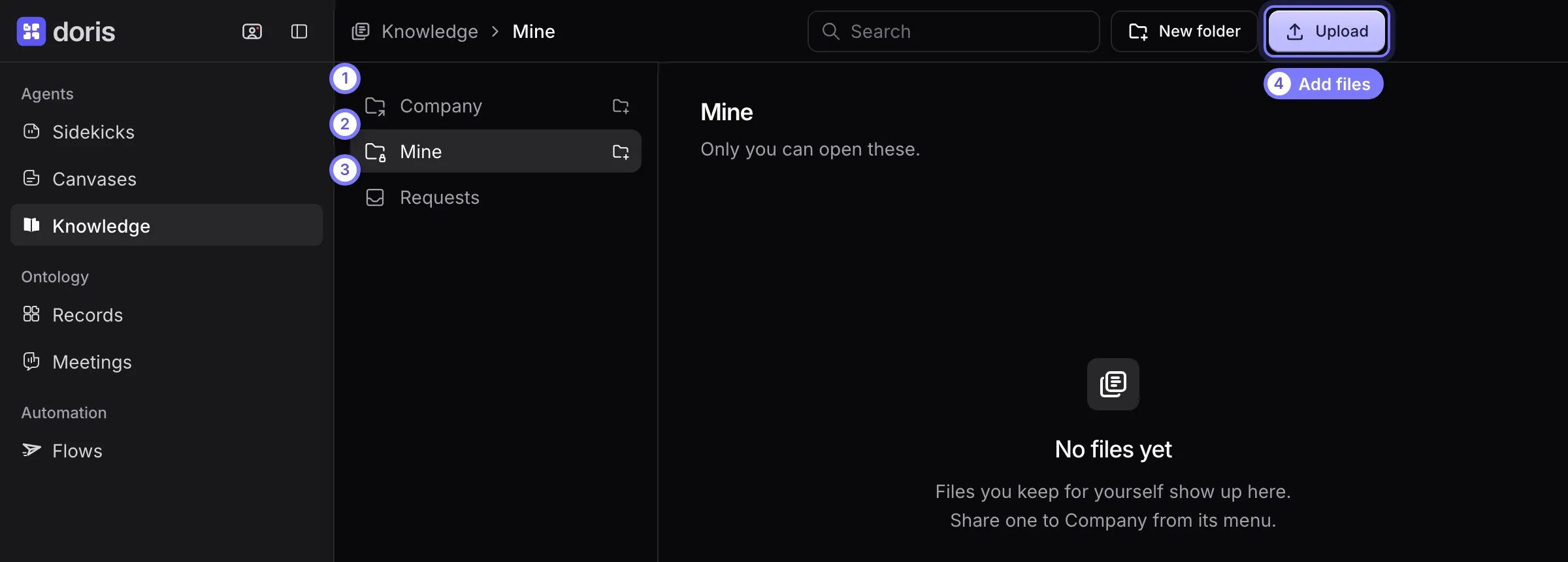
Knowledge, with Mine open. (1) Company is shared with the workspace. (2) Mine is only yours. (3) Requests shows admins the files members ask to share. (4) Upload adds files, and New folder is beside it.
Add files
- Open the folder you want, in Company or Mine.
- Select Upload at the top and choose your files. You can also drag files onto the right pane. To make a folder, select New folder at the top.
Move, find or delete files
Open the three-dot menu on a file and choose Move to… or Move to Trash. A toast after Move to Trash has Undo. You can also drag a file onto a folder. The Search box at the top finds files by name across Company and Mine.Share a personal file with the company
- Open the file’s menu in Mine and choose Share to Company.
- If you are an admin, the file moves to Company at once. Otherwise it shows Requested until an admin approves it.
Import from SharePoint or Notion
An admin can bring a SharePoint or Notion source into Company.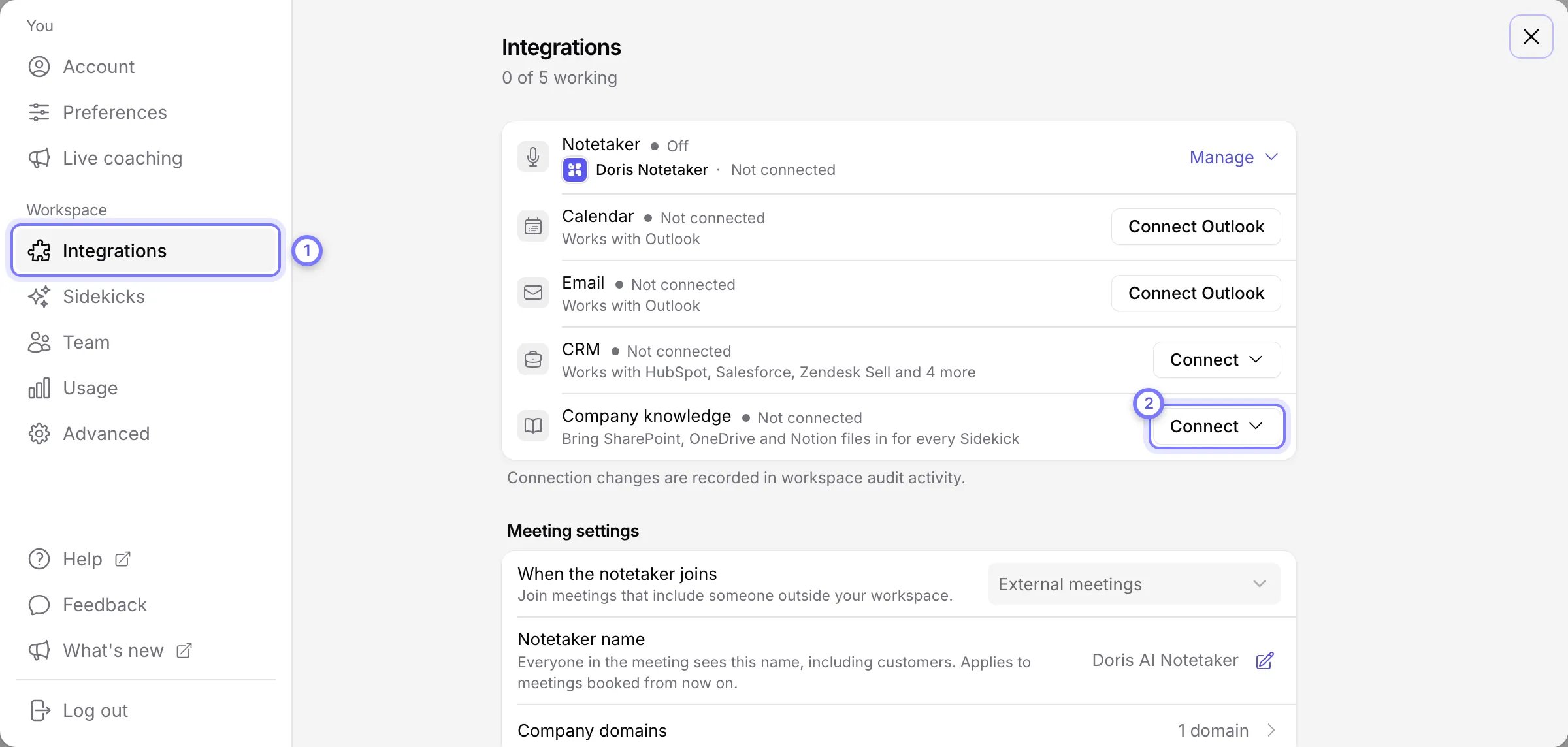
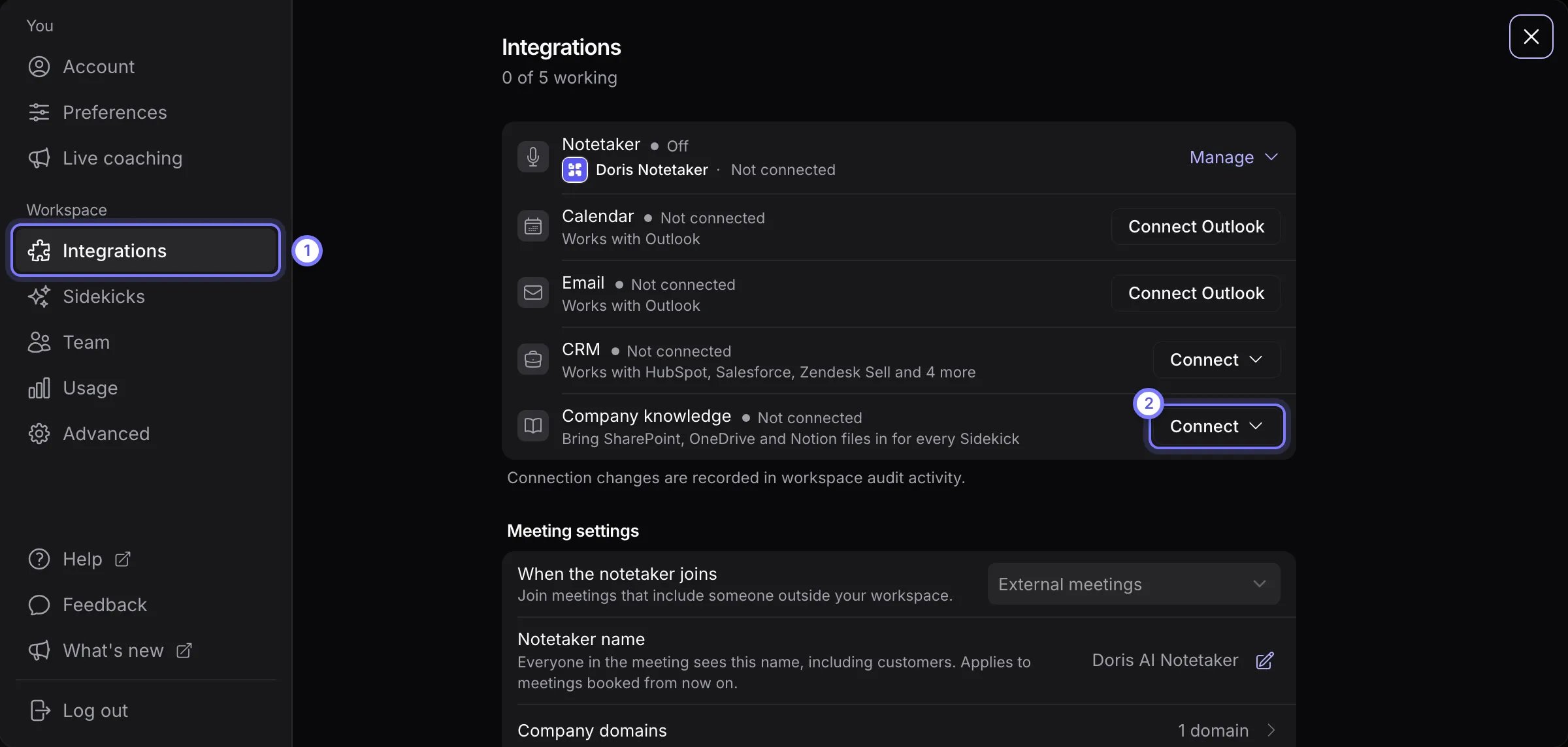
Settings > Workspace > Integrations. (1) Open Integrations under Workspace. (2) On the Company knowledge row, select Connect (or Add import once a source is connected).
- Go to Settings > Workspace > Integrations and find Company knowledge.
- Select Connect (or Add import) and choose the files or folders.
- Choose how Doris reads them.
Imported files land in a synced folder that you cannot change in Knowledge. Everyone in the workspace can open them and every Sidekick searches them, so import only what the whole workspace may read.